Use Conflict Check to search the entire document repository for people or organizations that may be associated with existing or previous matters.
Run a Conflict Check
•Select Tools > Conflict Check.
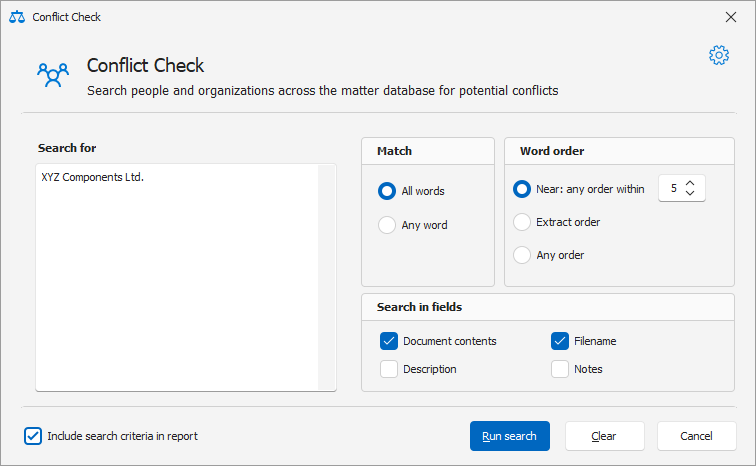
•In Search for, enter the name or terms you want to check.
•Under Match, select:
oAll words – matches results containing all search terms.
oAny word – matches results containing any of the search terms.
•Under Word order, select how the search terms should be matched:
oNear – finds terms within the specified number of words.
oExact order – matches the terms in the order entered.
oAny order – matches the terms regardless of their order.
•Under Search in fields, select the fields to search:
oDocument contents
oFilename
oDescription
oNotes
•Select Include search criteria in report if you want the search settings included in the report.
•Click Run search.
|
Example
A law firm is considering ABC Manufacturing Inc. as a new client for a dispute against XYZ Components Ltd.
Before accepting the matter, a law firm can search for the names of both parties to identify existing or previous matters involving them.
For example:
Search for: XYZ Components Ltd.
Review the matching documents and associated matters to determine whether the searched party has been involved in an existing or previous matter.
Report Settings
Before generating the report, you can customize how the Conflict Check results are presented.
 COI- Report Settings |
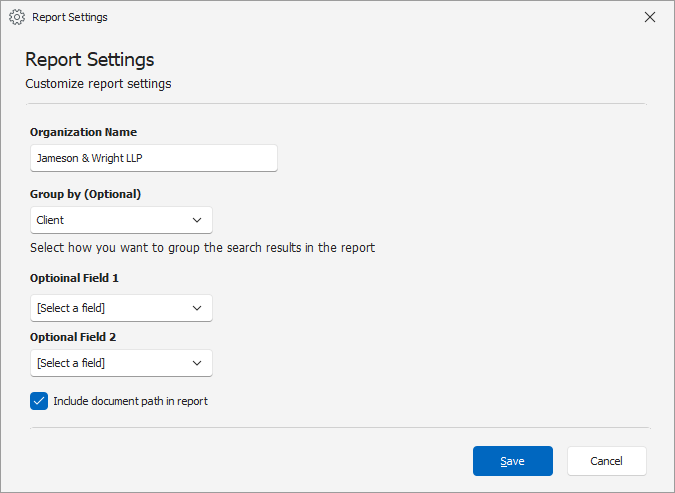
•Click the Settings icon in the Conflict Check window to open Report Settings.
•The following options are available:
oOrganization Name – Enter the organization name to display on the report.
oGroup by (Optional) – Select a field to group the search results.
oOptional Field 1 – Select an additional field to include in the report.
oOptional Field 2 – Select another field to include in the report.
oInclude document path in report – Includes the document path in the report.
•Click Save to save the report settings.
Conflict Check Report
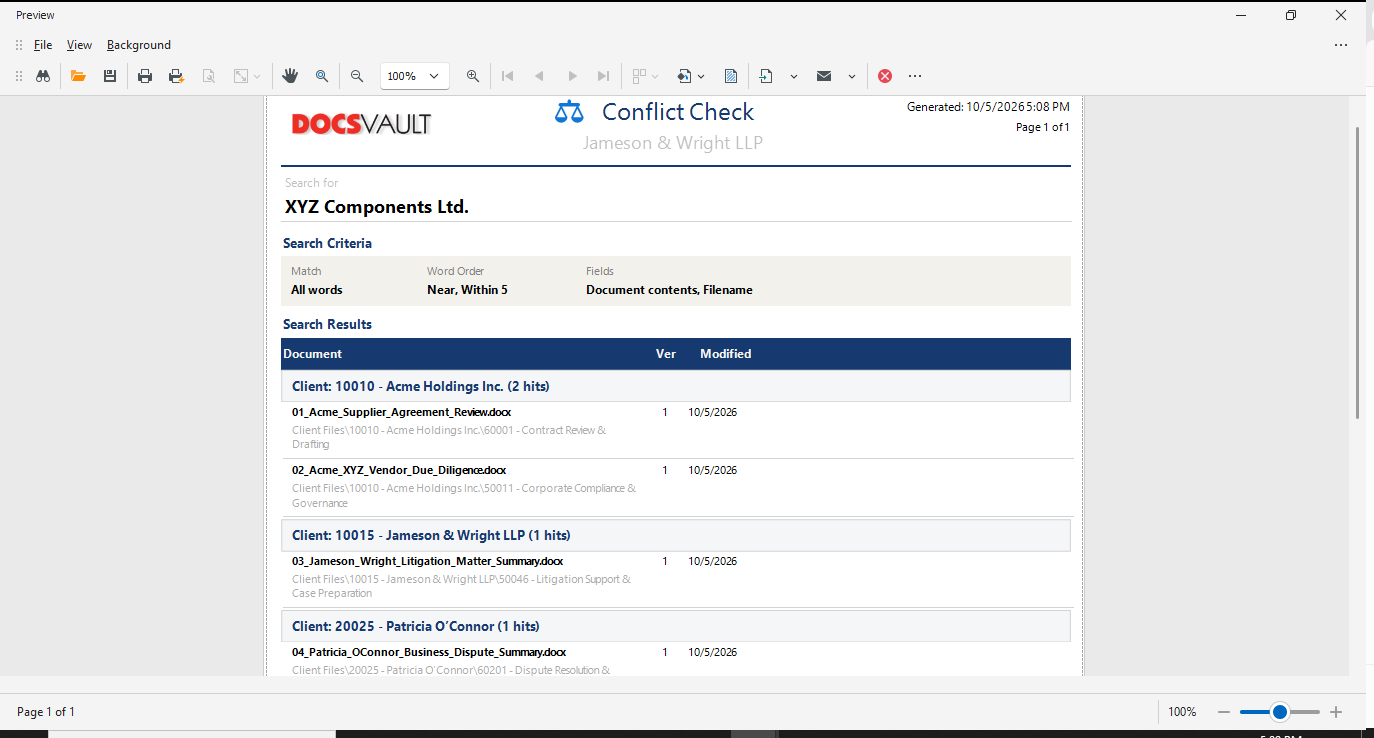
The generated report includes the search criteria and matching documents. Depending on the selected report settings, it can also include grouped results, additional document information, and document paths.
Review the results to determine whether any existing or previous matter requires further conflict review.
Note: A search result does not necessarily indicate that a conflict exists. Review the relevant matter and follow your firm's conflict-checking procedure.
COI- Sample Report Preview