Request Documents to a Specific Folder
The Document Request feature allows you to request files quickly via either the Docsvault's email system or you can copy a link to your clipboard. You can send a document requ
est link to anyone, and they can upload a file from any their computer or mobile device. People you request files from do not need a Docsvault account to upload a file.
For example: This feature can be used for a range of sharing scenarios, whether it's collecting bids from contractors, asking for 'Income Statement' from your client or a teacher collecting homework through a document request link.
|
You can customize various security settings for your message before requesting files from your external users.
•You can create a document request link from Request Link under My Workspace > Public share node on the left panel of the Docsvault interface. OR
Right click on the folder and select Share Link > Email Upload Link from the context menu
•You can also select Copy Upload Link to copy the URL
•Use Edit Upload Link to modify an existing request link
•Click New button
•Navigate to the folder where you want the uploaded files to be stored.
•On the Document Request Link screen you can copy the request link by clicking the Copy link and pasting it into an email, instant message etc. or you can use Email Request Link option to send email via Docsvault to your external users.
•Document Request Links are consolidated and reusable. Docsvault reuses the same link per user for a document request instead of generating a new one each time the Document Request Link menu is used. You can email, copy, or edit the existing link as needed. To create a separate link, use My Workspace > Document Request.. |

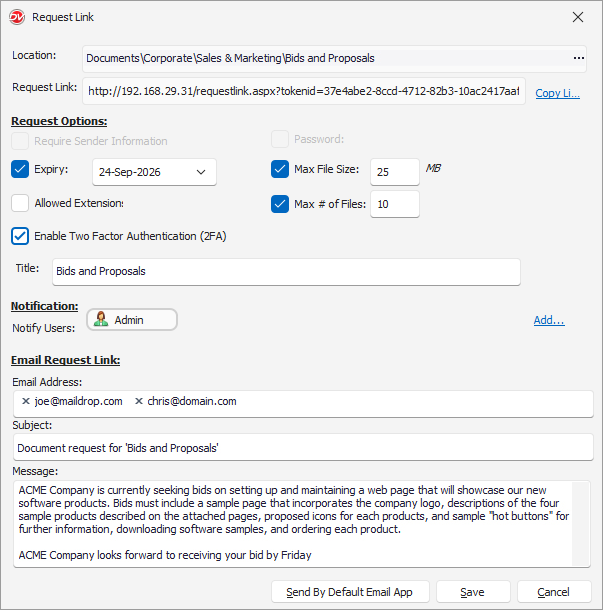
Request Options
Depending on how secure you want to keep a link, you can set your Request Options:
•Require Sender Information: This ensures that senders log in by providing their basic information such as first name, last name, and company name. Useful for tracking access when receiving files from external users.
•Expiry: Set how long you want the upload link to be accessible. If you select this option, by default it will be valid for 30 days. You can anytime adjust the default expiration date of your link.
•Allowed Extensions: This setting allows you to set the desired file types for upload. Simply specify the file extensions separated by a ' , ' (comma). Example: pdf, doc, xlxs, tiff, tif – only these file types will be uploaded leaving out any other undesirable file types.
•Password: If you're sharing link, you can control who can see your link by adding a password.
•Max file size: Select this option to set maximum file size limit for uploads (by default it is 25 MB).
•Max # of files: Select this option to set the quota for total number of files to be allowed for upload (by default it is 10).
•Title: Enter the title heading for your upload Documents Request page.
•Enable Two Factor Authentication (2FA): When enabled, the recipient must enter a verification code (OTP) sent to the specified email address before they can access the link and upload documents.
•You must specify at least one recipient email address when enabling 2FA. •When 2FA is enabled, Require Sender Information and Password are not applicable and cannot be used.
|
•Notification: Select the users whom you wish to notify when documents are uploaded in the shared folder.
•Email Request Link: Allows you to customize your email message:
oEmail Address: Enter a Recipient for your message. You can enter an email address manually or select users from your address books - simply key-in the email address, list of emails matching the keyword would be displayed.
oSubject: Enter a subject for your message.
oMessage: Customize your email message.
•Click Share when ready.
 |
•To avail the feature of emailing, enable 'Client side Alerts' in the Docsvault Server Manager.
|
Each recipients will get an email message with the upload link to the shared folder.
Your links are secure!
People who upload files to your document request link cannot access your Docsvault. Only you can view the files uploaded by others.
•Only users with system rights of 'Create Public Link' and a minimum of 'New File' rights on a folder can create and share Document Request Link for it.
|
