Deleting and Restoring Documents
When you delete files or folders from Docsvault, they are moved to the Docsvault Recycle Bin.
The Recycle Bin provides a safety net for deleted files and folders. You can restore deleted documents along with their versions and profile information as long as they remain in the Recycle Bin.
You can also open files from the Recycle Bin to review their contents before restoring them or to copy information from them. You can export files from the Recycle Bin when you need a copy outside Docsvault.
To permanently remove files from Docsvault, you must permanently delete them from the Recycle Bin. You can delete individual items or empty the entire Recycle Bin. Users with Empty Recycle Bin system rights can permanently delete files from the Recycle Bin.
•Before deleting a document, make sure it is checked in and is not currently routed by another user.
|

Deleting documents
•Select the documents to be deleted.
•On the Edit menu, select Delete or click the delete  icon on the toolbar.
•At the confirmation message, click the Yes.
The selected documents are moved to the Docsvault Recycle Bin.
•Only empty Cabinet can be deleted •If you delete a parent folder, its sub folders will also be deleted •When you delete a document, all its versions are deleted and moved to the Recycle Bin. |

•Only the Administrator or the user with 'Overwrite/Delete' rights can delete documents or folders.
|

View the Recycle Bin
•From the View menu, select Recycle Bin, or click the Recycle Bin icon.
•The Recycle Bin dialog box displays the deleted files and folders.
|
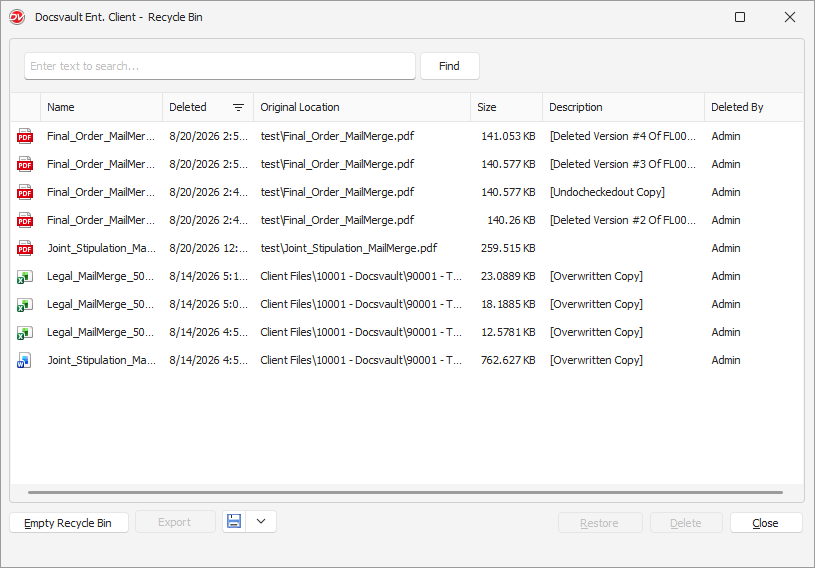
Open a File from the Recycle Bin
You can open a deleted file without restoring it to Docsvault.
•Open the Recycle Bin.
•Select the file you want to view.
•Double-click the file.
Docsvault opens a local copy of the file so you can review its contents.
•Opening a file from the Recycle Bin does not restore it to its original location. |
Export Files from the Recycle Bin
You can export a deleted file from the Recycle Bin when you need a copy outside Docsvault.
•Open the Recycle Bin.
•Select the file you want to export.
•Click Export.
•Select the destination and complete the export.
The file is saved to the selected location without restoring it to its original location in Docsvault.
Restoring Deleted documents
•Select the files or folders you want to restore.
•Click Restore.
The selected items are restored along with their available versions and profile information.
Permanently Delete Documents
You can permanently delete individual items from the Recycle Bin or empty the entire Recycle Bin.
Users must have Empty Recycle Bin system rights to permanently delete items from the Recycle Bin.
•Permanently deleted items cannot be restored from the Docsvault Recycle Bin.
|