File Menu
The File menu controls the check-out, check-in, saving, printing, and export of PDF files, and the display of Document Properties.
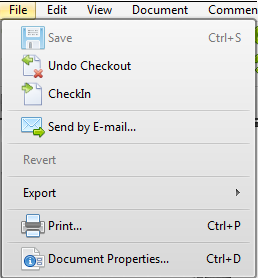 |
The Save option in the File menu is used to preserve changes made to a PDF file. |
Docsvault Options: Convert to PowerPoint allows you to convert PDF file to PowerPoint file |
|
Save Copy As... allows you to create a duplicate file under a new name on your local machine |
|
Send by E-mail allows you to send a copy of the currently displayed PDF file to another user by e-mail |
|
Revert option will undo any unsaved changes and revert to the "original" state of the document. |
|
Save as Optimized...allows you to optimize pdf and adjust your settings. |
|
Email Documents allows you to document export documents as email attachment |
|
Export allows you to export a selected page(s) or selected area of a page as an image file. |
|
Print can print the currently file |
|
Document Properties enable you to read and create an information about your PDF file (info, security method, appearance, actions when a document is viewed and more in a window Document Properties. |