 |
Indexing Options
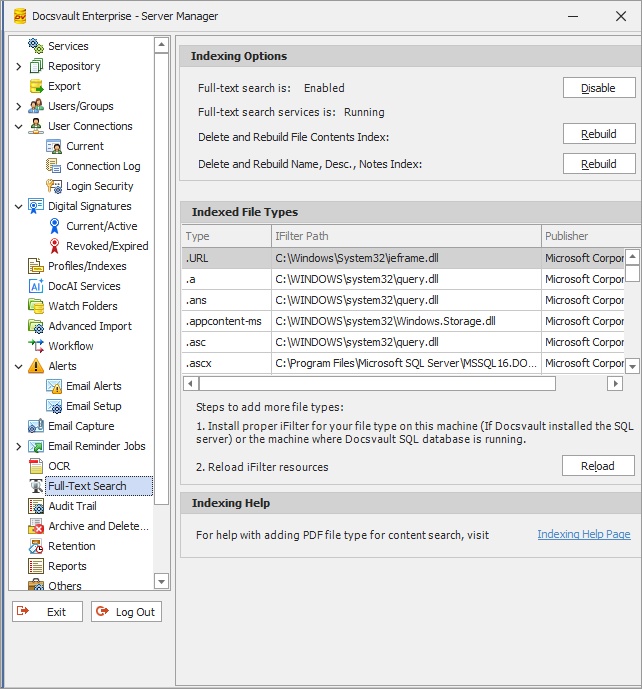
Enable Full-Text within Docsvault: This feature is already enabled by default. However it can be disabled if you wish to stop indexing file contents. Disabling Full-Text search will stop indexing new files and will erase all the previous indexes for the documents imported into Docsvault.
Rebuild Full Text Indexes
File (Document) Contents
You may need to rebuilt the File Contents text index if:
•You are experiencing unexpected search results or the content text search has become too slow
•You have added an iFilter to index contents for a new file type extension
Note: Re-indexing contents of documents is a time consuming process and might take hours or even days depending on the number, type and size of files stored in your repository. Perform this action only during off peak hours.
Document Name, Description, Notes
You may need to rebuilt this text index if:
•You are experiencing difficulties searching for documents by their name, description or notes text
•Text searches within these fields has slowed down
Note: This reindexing should complete in under 10 mins for most cases and can be performed when needed without accounting for long wait times or off-peak hours.
Indexed File Types
This file type grid displays the file extensions that can be indexed for content because they have the necessary iFilters installed on the server. If you do not see a file extension (example .PDF or .docx) in this list proper iFilters for that file type are not installed and hence its contents cannot be indexed and searched for.
Steps To Add More File Types
oInstall proper iFilter for desired file type on the SQL server hosting Docsvault database
oClick on the ‘Reload’ iFilter resources button
oRestart the ‘SQL Full-text Filter Daemon Launcher’ service hosting the SQL database for Docsvault. This is done automatically if the SQL server is on the same machine as the Docsvault server.
Full-Text Indexing Requirements:
1.SQL Full-Text Indexing service named ‘SQL Full-text Filter Daemon Launcher’ should be installed and running on the server hosting the SQL database for Docsvault. By default Docsvault installs the SQL server database on the same machine as the Docsvault server. So if you did not specify your own SQL server during installation, SQL server machine is the same as the Docsvault server machine
2.IFilter: To have a full text searching capability for specific extension you need to have its corresponding iFilter installed on the machine where the SQL server database for Docsvault is running. The search service already includes iFilters for many file types as listed in the ‘Full-Text Search’ node of the Docsvault Server Manager dialog. See ‘Adding More File Types’ topic below for further information on adding new file types for content search.
Adding More File Types:
By default, the operating system might not have the iFilters necessary to index popular file types such as .PDF, .docx, .xlsx, etc. Docsvault tried to install necessary iFilters for popular file extensions automatically. However, for any proprietary or uncommon file types, the information below will help you install proper iFilters.
Note that iFilters need to be installed only on the machine where the Docsvault SQL database is running. It is not required to be installed on all client machines.
Other File Types You can find more information on different file type iFilters at: • IFilter.org [ifilter.org] • IFiltershop.com [ifiltershop.com] Steps To Add More File Types
•Install proper iFilter for desired file type on the SQL server hosting Docsvault database •Go to ‘Full-Text Search’ node of the Docsvault Server Manager dialog and click on the ‘Reload’ iFilter resources button. •Restart the ‘SQL Full-text Filter Daemon Launcher’ service hosting the SQL database for Docsvault. This is done automatically if the SQL server is on the same machine as the Docsvault server.
|
