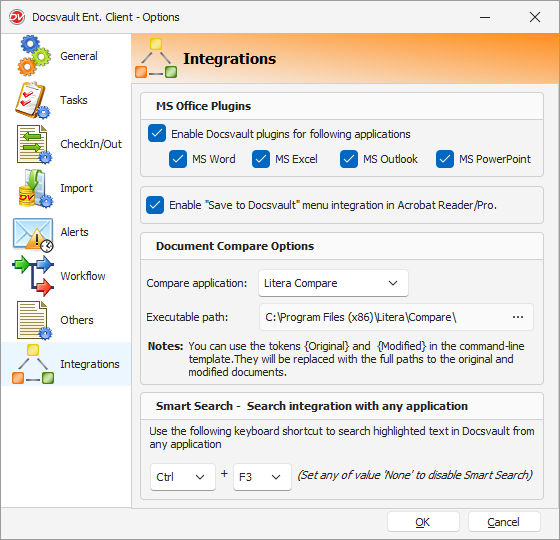
Use the Integrations options to configure Docsvault integrations with Microsoft Office applications, Adobe Acrobat, document comparison applications, and other applications.
 Integrations Settins |
Microsoft Office Plugins
Use MS Office Plugins to integrate Docsvault with:
•MS Word
•MS Excel
•MS Outlook
•MS PowerPoint
Select Enable Docsvault plugins for following applications, and then select the applications you want to integrate with Docsvault.
When enabled, you can save files directly from the selected Microsoft Office applications to Docsvault.
The Outlook integration also allows you to save Outlook items such as emails, attachments, notes, and contacts to Docsvault.
• If the Docsvault Office Plugin was not installed during Docsvault installation, you can enable it later from these settings. |

Adobe Acrobat Integration
Select Enable "Save to Docsvault" in Acroboat Reader/Pro to integrate Docsvault with Adobe Acrobat Reader or Pro.
Once enabled, Save to Docsvault is available in the Acrobat File menu. You can use it to save PDF files directly to Docsvault.
Document Compare Options
Use Document Compare Options to select the application Docsvault uses to compare documents.
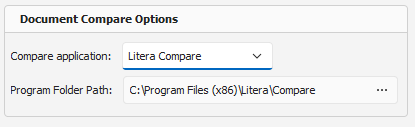
Docsvault provides two document comparison options:
•Default (Built-in) - uses the standard document comparison available in Docsvault.
•Litera Compare - uses Litera Compare to compare documents.(Requires Litera Compare license and program installed)
If you select Litera Compare, enter the path to the Litera Compare executable in Executable path, or click Browse to select it.
 Literra |
Note: For information about comparing documents, see Working with Documents > Compare Documents.
Smart Search
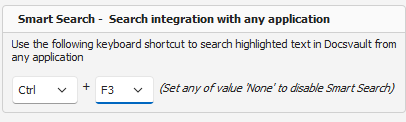
Smart Search lets you search highlighted text from another application in Docsvault.
Docsvault uses Ctrl + F3 as the default Smart Search shortcut. If this shortcut conflicts with a shortcut used by the application you are searching from, you can change it here.
To disable Smart Search, select None.
 Smart Search |