The Navigation dialog provides a central place to locate and select files, folders, and other Docsvault locations when you open or save documents. You can browse the folder structure, search for locations, and use quick-access sections to find frequently used documents and searches.
The file list displays information such as Name, Description, Size, Modified Date, and System ID to help identify documents you are looking for.
 |
Quick Access
The Navigation dialog provides quick access to commonly used locations and searches:
•Recent Files - quickly access files you recently worked with.
•Profile Search - open Profile Search to find documents using profile and index values.
•Saved Searches - access searches that you have previously saved.
•Favorite Toolbar: Favorite Files, Folders and Searches - quickly open items and searches marked as favorites.
These options let you access frequently used documents and search tools without navigating through the folder hierarchy.
Default View
When you open the Navigation dialog, the default view depends on whether you are selecting files or folders:
•File selection mode: Opens to the Recent Files view.
•Folder selection mode: Opens to the last saved location.
Search for Files and Folders by Name
You can use the search option in the Navigation dialog to quickly find a file or folder by their name without manually browsing through the folder structure.
•Click the Search option in the Navigation dialog.
•Enter the search criteria.
•Run the search.
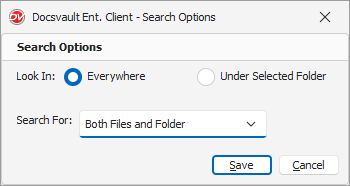
Search Options:
You can setup the search options:
•Look In: Select where do you want to search
oEverywhere - searches the entire repository.
oUnder Selected Folder - searches within the currently selected folder and its contents.
•Select what you want to search for:
oBoth Files and Folder - searches for both files and folders.
oSelect the appropriate option if you want to limit the search to a specific item type - Only Files / Only Folders
 |
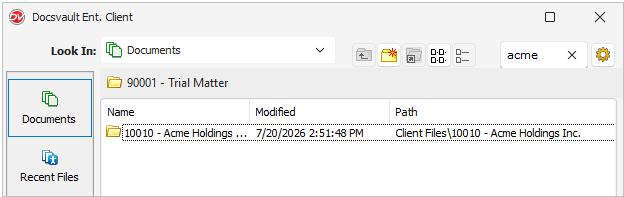
The search results display the matching files or folders. The document path is also shown in the results, helping you identify the location of the item.
 |
•Use Under Selected Folder when you know the general location of the item. This can narrow the search and make it easier to find the required file or folder. |

Create a New Cabinet or Folder
You can create a new cabinet or folder directly from the Navigation dialog when selecting a location in Docsvault.
•Navigate to the location where you want to create the cabinet or folder.
•Click New Folder icon to create a new folder or cabinet, as applicable.
•Enter the name and other details.
•Save the new location.
The new cabinet or folder is created in Docsvault and can be selected as the destination for the current operation.
Using the Navigation Dialog
The Navigation dialog is used in several Docsvault operations, including:
•Opening documents.
•Selecting a destination when importing documents.
•Selecting a location when saving documents.
•Selecting files or folders for other Docsvault operations.
The available options may vary depending on the operation you are performing and your security rights.