How to Save from Within Office
•Use the Docsvault Save or Save As options from the File menu or click on Save to Docsvault button on the toolbar.
•A Docsvault navigation screen will then allow a user to choose a Docsvault folder location to save the document.
•The Docsvault Import dialog opens.
•In the Filing Mode section, select Manual or Auto:
oManual: You will be prompted to select the destination.
oAuto: Docsvault automatically files the email based on the configured profile and filing rules.
•In the Profile field, select the appropriate document profile.
•Enter or select the required index values.
•Review or enter the Name, Description, and Notes.
•Select the required Section, Doc. Status, and Initiate WF values, if applicable.
•Check the Import to location at the bottom of the dialog. Click the browse button if you need to change the destination.
•Review the email in the Document Preview panel. The preview displays the email content and shows any attachments included with the email.
•Click Import.
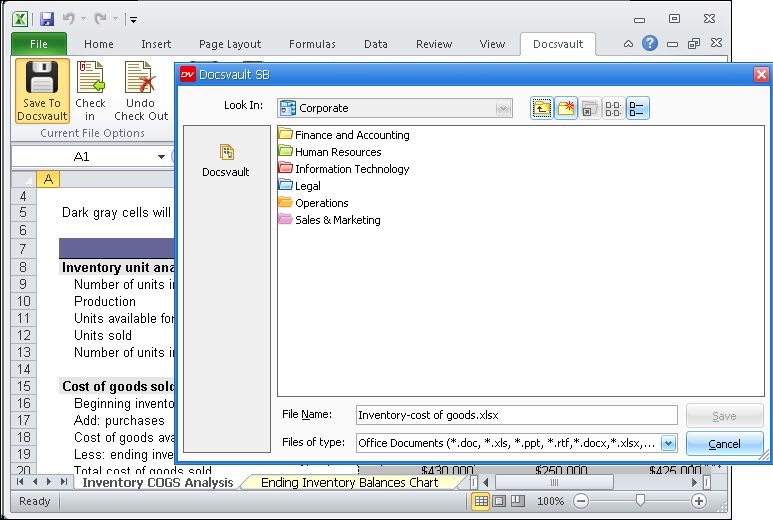 MS Office document added into Docsvault |
Auto-Filing Profiles
You can configure auto-filing Profile that automatically route documents to specific folders based on index values provided at the time of saving.
Notes:
•You can add or edit Profile/Indexes, notes and description of a document opened for editing right within MS Word. This feature is available in Docsvault v8.0 and above and is visible in MS Word only.
See also |
Importing Documents: Filing Documents from Filing Area |