Use Import Docs to import files and folders from local drives, network locations, or externally connected drives into Docsvault. When you import a digital file, Docsvault stores a copy of the selected file or folder.
Importing Documents Directly to a Folder
Open the 'Import Documents' Dialog Box
You can open the Import Documents dialog box using any of the following methods:
•From the File menu, select Import Docs.
•Right-click the destination folder and select Import Docs.
•Click the Import Docs icon on the toolbar.
Select the Destination Folder:
In Docsvault Explorer, select the cabinet or folder where you want to store the imported documents.
Select Files or Folders to Import:
•In the Import Documents dialog box, Click Add.
•Select the files or folders your want to import.
•Click OK.
Import Dialog Box Overview
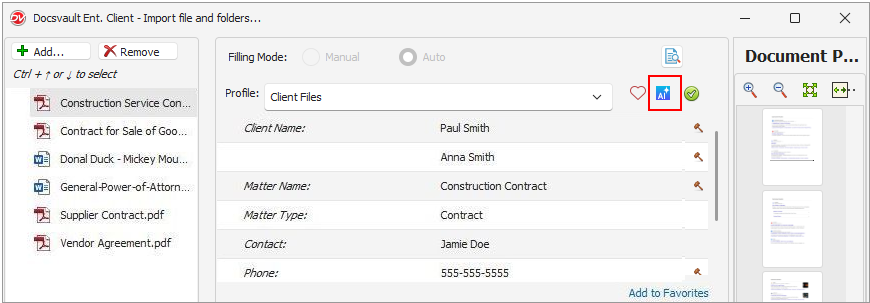
The Import Documents dialog box is divided into sections for selecting files, previewing documents, and entering profile information.
Files and Folders List
The left section displays the files and folders selected for import. This section is automatically displayed when multiple files are selected.
You can:
•Click Add to include more files/folders
•Click Remove to remove selected items
•Right-click a file to:
oRename file
oSplit PDF
oRemove file
 Importing Files/Folders |
Document Preview
The right section displays a preview of supported files, such as PDF files and images.
You can:
•Click Preview to show or hide the preview.
•Use the preview tools to zoom and navigate the document.
Additional options
Use the options available next to the Preview button to perform additional actions during import.
New Options menu  next to preview icon.
•Save as Version of Existing Document
You can create a new version of an existing document directly during the import process. Use Save as Version of… to browse and select an existing document. The imported file is then added as a new version of the selected document.
•Copy Metadata from Existing Document
Use Copy Profile From to copy metadata from an existing document in Docsvault. The selected document’s profile and index values are automatically applied to the current file - saving time used to manually enter metadata again.
•Split PDFs During Import
Select Split PDFs to open the Split Pages dialog, where you can split PDF files during the import process, eliminating the need to split documents after import. You can choose one of the following options:
•At page: Split the PDF at a specified page number
•At every: Split the PDF after a defined number of pages
This feature is useful for separating multiple documents combined in a single PDF and profiling them individually during import.
Profile and Indexing
Use the middle section of the Import Documents dialog box to assign a profile and index values to the documents.
Filing Mode:
Select one of the following filing modes:
•Manual - enter the searchable index values for each document.
•Auto - automatically classifies documents using predefined template rules based on index values.
For more information, see Profile and Indexes and Filing Documents.
Save Documents to Multiple Locations
You can save the same document to multiple locations during a single import by selecting multiple filing metadata values to save the document to the corresponding locations without repeating the import.
Example 1: Filing to multiple Client/Matter locations
If the filing path is: <<Client>>\<<Matter>> you can specify multiple Client/Matter pairs.
For example:
Client |
Matter |
10010 - Acme Holdings Inc |
50011-Corporate Compliance & Governance |
10015 - Jameson & Wright LLP |
50046 - Litigation Support & Case Preparation |
Docsvault saves the document to both corresponding locations:
•10010 - Acme Holdings Inc\50011-Corporate Compliance & Governance
•10015 - Jameson & Wright LLP\50046 - Litigation Support & Case Preparation
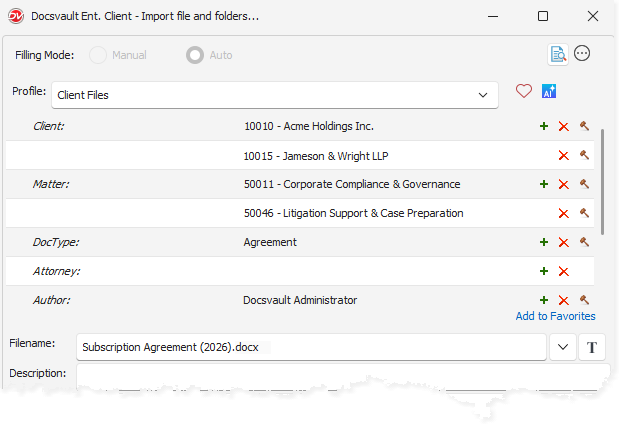 Import dialog showing two Client/Matter pairs selected for the same document |
Note: When filing a document to multiple locations using paired location metadata fields, such as Client and Matter, you must specify the values in corresponding pairs.
Other filing paths:
oIf the filing path uses independent fields, such as <<Department>>\<<DocType>>, you can select multiple values for each field.
oIf the filing path contains only one field, such as <<Department>>, selecting multiple values files the document in each corresponding location.
Quickly Access Profile Values
You can save frequency used profile values as favorites for quick selection:
•Click Add to Favorites.
•Click Heart icon or press Alt+F to open Favorite & Recent dialog box.
•Select a favorite or recent entry.
•Click Select or press Alt + S to apply the selected entry.
Press Alt+C to close the dialog box without selecting an entry
To apply the same information to all selected files or folders, click the green tick icon.
 DOCAI Capture add-on
If the DocAI Capture add-on is available, click the DocAI Capture button to extract data from documents during import.
DocAI Capture is currently available for PDF documents.
For more information, see DocAI Add-on > DocAI – AI Capture for more information.
|
Filename
Enter the filename for the document.
•Use the Filename Template icon to create standard naming patterns.
•Press F4 to open a dropdown of recent/predefined filenames.
•Use the Find Panel above the list to quickly locate a filename
See Filename Template for more information.
Description and Notes
Enter optional description and notes for reference.
You can assign:
•Document Status
•Sections (virtual folder tabs)
See Creating Folder Sections for more details.
Workflow Integration
You can initiate a workflow while importing documents.
Apply Profile and Section to Subfolders
To apply different profiles for folders:
•Select the required folder
•Enter the profile and selection information.
•Click Apply to Subfolders
Start the Import
Click Import to begin importing your documents.
By default, Docsvault preserves the original system created and modified date and time of files and folders during import.
You can change this behavior from Tools > Options > Import.
Updating the Accessed Date When Importing Older Documents
When you import an older document or email and choose to retain its original system dates, Docsvault updates its Accessed Date to the date of the import.
This allows the imported document or email to appear in the Recently Accessed Documents list for quick access.
This should be added under Importing and Exporting Documents > Importing Documents > Using "Import Docs", near the existing information about Keep original system dates.
Note: The original system dates are retained, but the Accessed Date is updated when the document or email is saved.
OCR (Optical Character Recognition) During Import
If you import an image-only PDF, you can convert it into a searchable PDF using Docsvault’s built-in OCR module.
See Working with PDF Documents for moreinformation.
•Administrators or users with 'Create Profiles/Indexes' rights can define custom profiles.
|

•File Size and Character Limit: oMax upload file size limit for an individual document: 1999 MB. oFilename lengths are limited to 200 characters, including spaces and the file extension.
•Import Restrictions: oShortcut/link files cannot be imported oDocsvault displays a list of files/folders that could not be imported •Editing Profile Information After Import oYou can modify profile information during import. oAfter import using Edit > Properties. oQuickly edit profiles of scanned documents and image from Document View window.
•Spell Check for Text Fields oSpell check is available for all text files, including filenames, descriptions, notes. oUsers can enable or disable spell check from Tools > Options > General window.
|
