AI Services Logs
The AI Services Logs let you review activity generated by Docsvault's AI services, including AI Capture and AI Assistant. Use these logs to review when an AI service was used, which user initiated the activity, which computer was used, and how many pages were processed.
You can access AI Services Logs from the Docsvault Client or Docsvault Server Manager.
Opening AI Services Logs
From Docsvault Client
Open the AI Services Logs to review AI service activity.
•Open Docsvault Client.
•From the Administration menu, select AI Services Log.
From Docsvault Server Manager
Open the AI Services Logs from the Docsvault Server Manager.
•Open Docsvault Server Manager.
•Navigate to DocAI Services.
•In Query Logs section, click Open to view the logs.
Understanding the AI Services Log
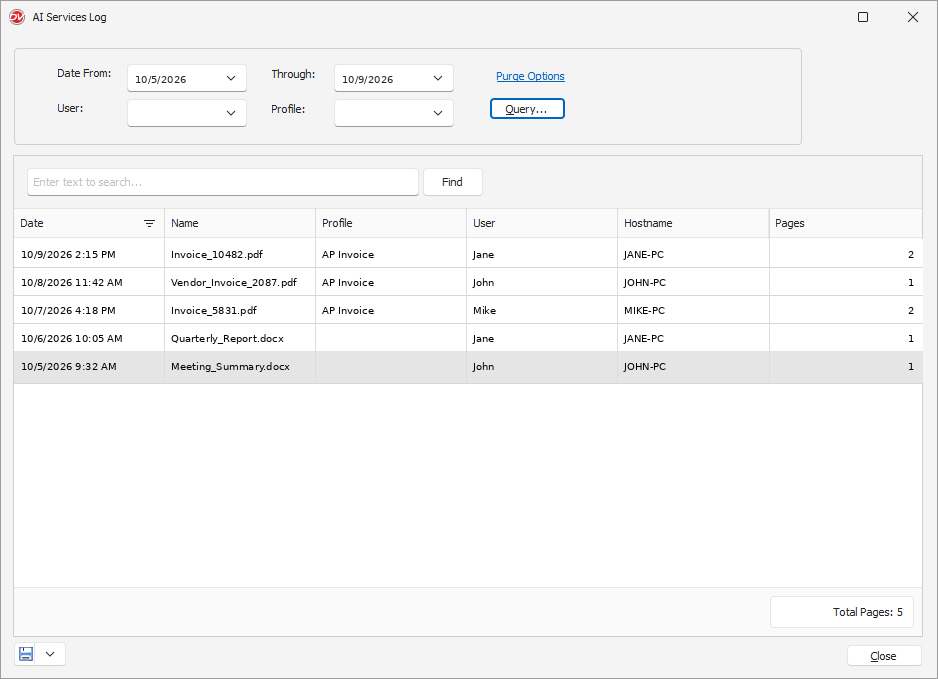
The AI Services Log displays recorded AI service activity in a table.
The log includes the following columns:
•Date: Date and time when the AI service activity occurred.
•Name: Name of the document processed. This field may be empty for some AI Assistant activities.
•Profile: Profile associated with the document. For AI Capture activity, this column displays the applicable profile, such as AP Invoice. For AI Assistant activities, this field may be empty.
•User: User who initiated the activity.
•Hostname: Name of the computer from which the activity was initiated.
•Pages: Number of pages processed.
Filtering AI Services Logs
You can filter the logs to review activity for a specific date range, user, or profile.
To find AI service activity matching your criteria.
•In Date From, select the starting date.
•In Through, select the ending date.
•In User, select a user to filter the results by user, if required.
•In Profile, select a profile to filter the results by profile, if required.
•Click Query.
The log displays entries matching the selected criteria.
Searching Within the Logs
To find a specific entry in the displayed log results.
•Enter a search term in the search field above the log table.
•Click Find.
The log displays matching entries, if any.
 |
Purging AI Services Logs
The Purge Options link is available at the top of the AI Services Log window. Use this option to permanently delete the log.
Saving or Exporting the Log
Use the save/export control at the bottom-left of the AI Services Log window to access the available output options.