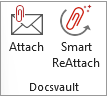
You can use Attach in the Docsvault Outlook Add-in to select a document from Docsvault and attach it to a new email message.
To attach a document from Docsvault
•Open a new email message in Microsoft Outlook.
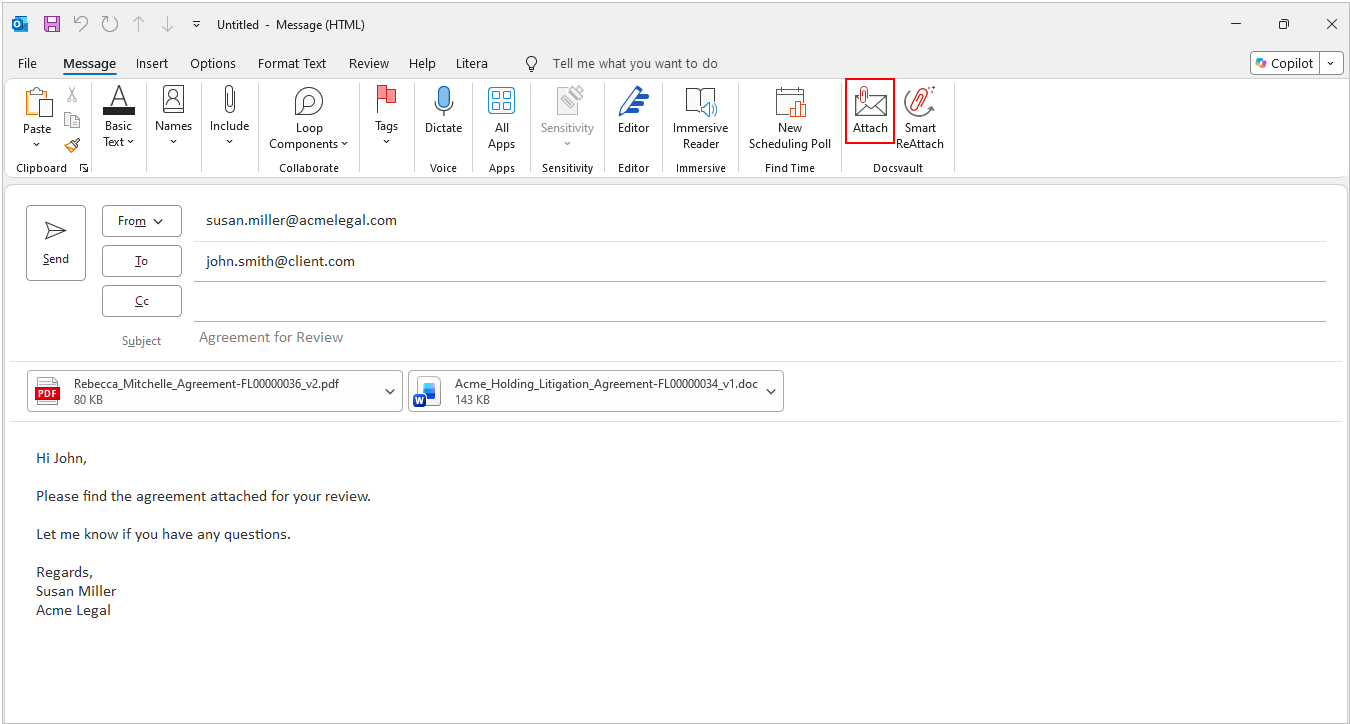
•On the Docsvault Outlook Add-in, click Attach.
•The Docsvault Navigation dialog opens.
•Navigate to and select the document that you want to attach from Docsvault.
•Confirm your selection.
•The selected document is added to the email as an attachment.
Docsvault adds the File ID and Version Number to the attachment filename so that the document can be identified.
Example:
Rebecca_Mitchelle_Agreement-FL00000036-v2.pdf
Where:
•FL00000036 is the Doc ID (System ID).
•v2 is the Version Number.
 |