Smart ReAttach allows you to review and clean metadata from email attached before sending them out. You can also rename, remove, reorder, and reattach documents, and optionally create a ZIP attachment
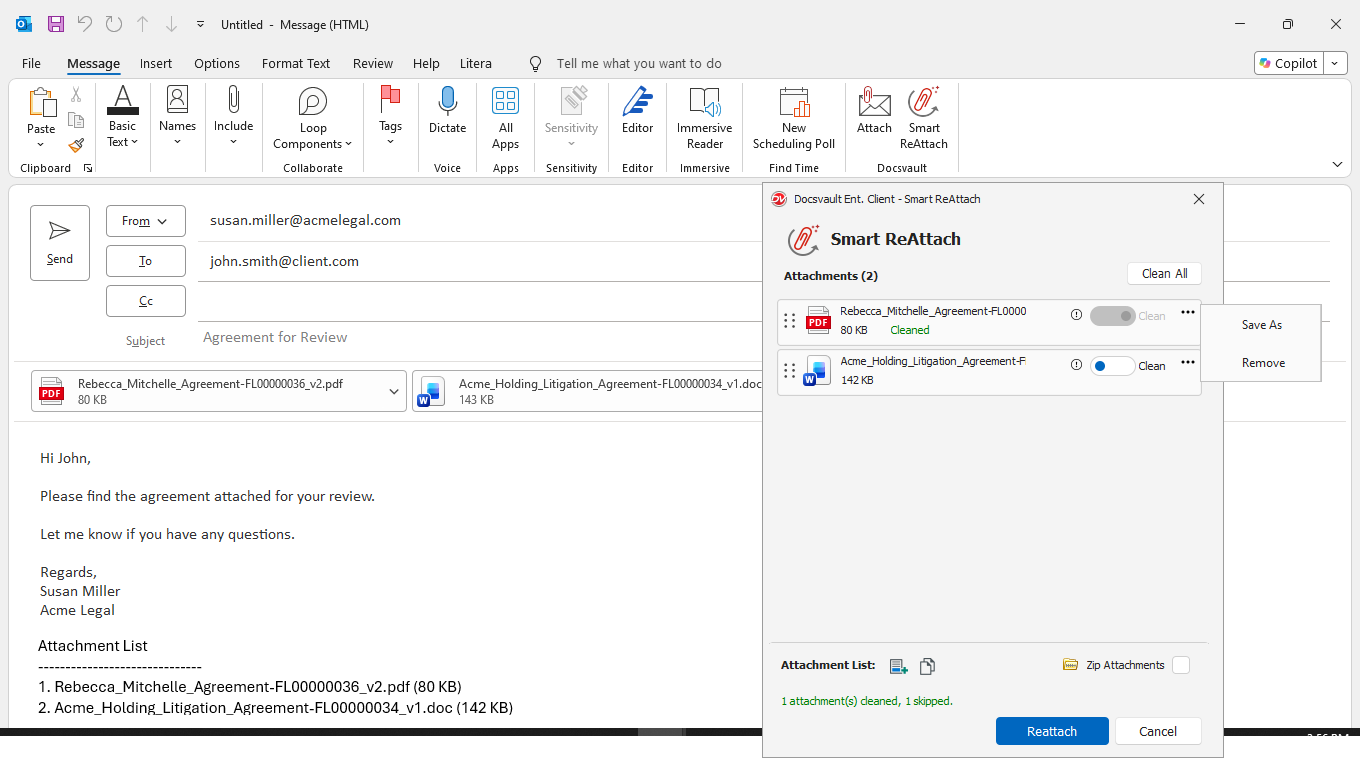
To use Smart ReAttach
•Open or compose an email in Microsoft Outlook.
•Add the required documents as attachments using Attach from the Docsvault Outlook Add-in.
•Click Smart ReAttach.
•The Smart ReAttach window displays the attachments in the email.
•Review the listed attachments. The status of each attachment indicates whether it has been cleaned.
•To clean metadata of an individual attachment, select the Clean option for that attachment.
•To clean all applicable attachments, click Clean All.
•After cleaning, the attachment is marked Cleaned in green.
•Review the attachments and make any required changes before reattaching them.
View File Properties
Explain the Info icon here:
•Click Info to view the file properties and metadata.
•Review the properties.
•Close the properties window to return to Smart ReAttach.
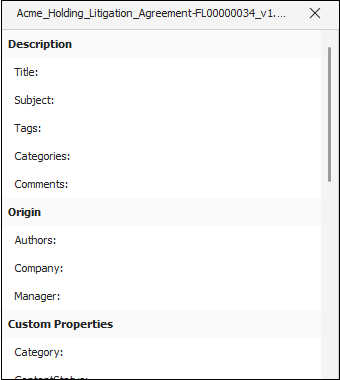 |
The file properties can include information such as Title, Subject, Authors, Company, Manager, Comments, Creator, Last Modified By, Application, Template, Version, Created, and Modified information etc.
After cleaning and clicking ReAttach, the cleaned file is attached to the email. You can then use the Info icon to review the file properties of the reattached file.
Manage Attachments
You can manage the attachments directly from the Smart ReAttach window:
•Rename an attachment: Select the filename and click the Pencil icon to edit the filename.
•Save As: Save an attachment outside Docsvault on your local computer.
•Remove an attachment: Use the options menu for the attachment to remove it.
•Reorder attachments: Drag an attachment to change its position in the list.
•Attachment List: Add a list of attachments to the email body or copy the attachment list to the clipboard.
•ZIP Attachments: Enable Zip to reattach the selected attachments as a ZIP file.
Reattach the Documents
•Review the attachments and make the required changes.
•Ensure the required attachments are cleaned, if applicable.
•Click ReAttach.
•The attachments are reattached to the email with the selected changes.
Expected Result
The selected documents are reattached to the Outlook email. Cleaned attachments are identified as Cleaned in the Smart ReAttach window.
Note: Smart ReAttach is intended to remove metadata from supported attachments before they are sent outside your organization. Review the attachment status before clicking ReAttach.
Security Note: Use Smart ReAttach when sending documents externally to help prevent unintended document metadata from being shared with the recipient.