A static index uses a predefined list of values. For example, you can create a Department index with values such as Accounting, Finance, Marketing, and Sales.
You can create static indexes from Docsvault Server Manager or Docsvault Client.
Static index values can be managed from the Profile panel or from Tools > Static Lists.
This section covers:
•Editing/ Delete Static Index Values
•Importing Static Index Values
•Managing Security for Static Index Values
Add, Edit, or Delete Static Index Values From Profile
You can create static index in Docsvault as follow:
• Importing Static Index Values
•In Docsvault Client, go to Administration > Profile/Indexes.
•On the Indexes tab, click New.
•Enter a Index Name.
•Enter a short Description.
•Select Static under Index Type.
•If required, enable Inherit Value to inherit the index value from the parent folder. When Index Value is enabled, the value is inherited from the parent folder even if a different profile is assigned to the parent folder.
•Click Edit Values to add values to the static list.
•Click Save to create the index
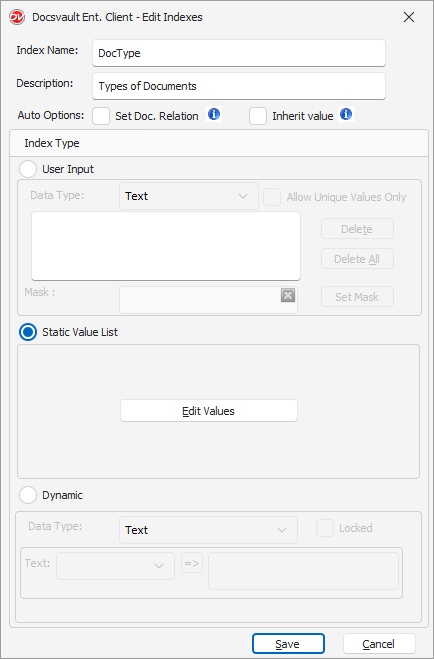 Static List |
Note: You can manage the values of an existing static index later from Edit Values in the profile or from Tools > Static Lists.
Edit & Delete Static Index Values
You can manage the values of a static index from:
•Edit Values in the Profile/Indexes area.
•Tools > Static Lists to manage static lists for different index fields.
From Tools > Static Lists, select the required Index Field, such as Department or Document Type.
You can:
•Add a value.
•Edit an existing value.
•Delete a value.
•Import CSV to add multiple values.
•Print the list.
•Export the list.
•Change the Status of values.
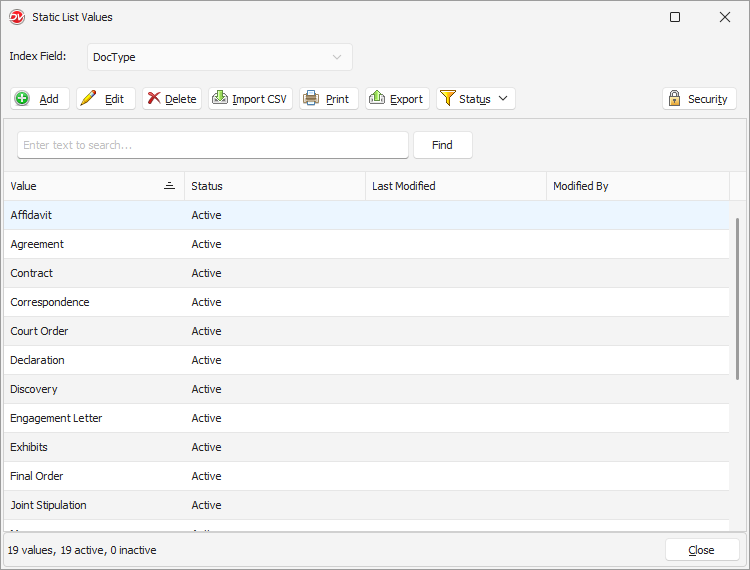 Manage Static List |
You can import multiple values into a static index from CSV file instead of adding values one at a time.
•Go to Tools > Static Lists.
•Select the required Index Field.
•Click Import CSV.
•Data File: Browse and select the CSV file.
•Select the column that contains the values you want to import.
•If the CSV file does not have a header row, select the option to include the first row as a value.
•Click Import.
Docsvault adds the imported values to the existing list and skips duplicate values.
Note: If the first row of your CSV file contains an actual value rather than a column heading, include the first row when importing.
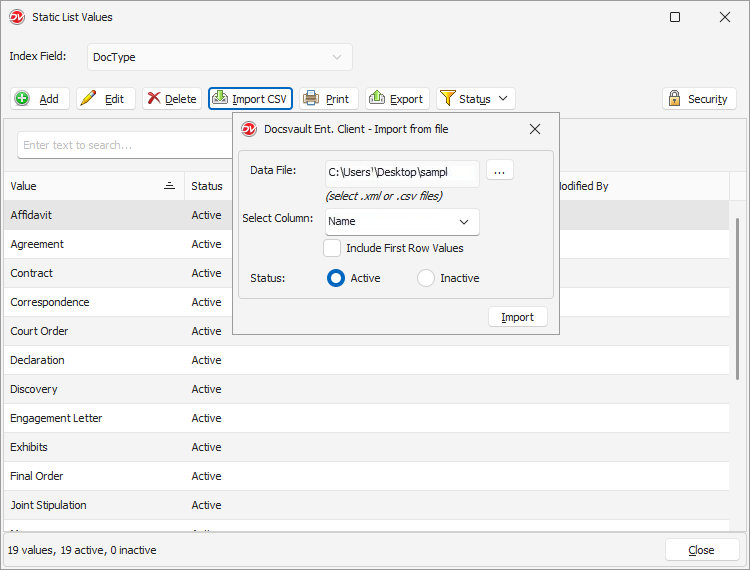 Import Static Index Values |
You can control which users and groups can manage values in a static index field.
•Go to Tools > Static Lists.
•Select the required Index Field.
•Click Security.
•Select a user or group from Available users and groups.
•Click Add >>.
•Select the permissions allowed for the user or group:
oAdd
oEdit
oDelete
•Click OK.
To remove a user or group, select the user or group and click << Remove.
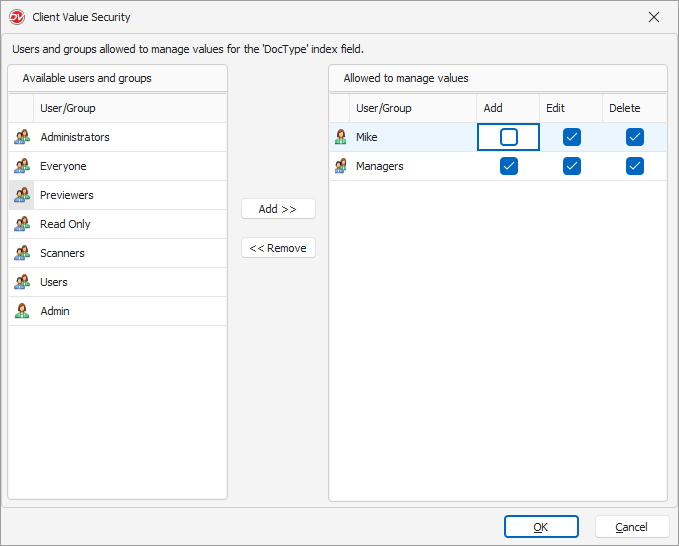 Import Static Index Values |
Security Note: Give Add, Edit, and Delete permissions only to users or groups who are responsible for maintaining the static list.
You can change the Index type of an existing Index i.e Static to User Input and vice versa. This conversion is possible for only Text data type indexes.
•Select an Index from the list and click on Edit button
•In the edit dialog box, under the Index Type section, select the desired Index type radio button
•The values entered by you before conversion for the User Input Index, will automatically be available for selection when converted to Static Index type
•Click on Save button to save the changes
•You cannot delete an Index if it is assigned to any profile •You can change the data type of an Index from Numeric/date to Text data type. Note that once converted it is not possible to convert it back to Numeric/date data type. •Only Text data type indexes can be converted from Static to User Input and vice versa. |

Users assigned Add permission for a static list can add new values to the list directly from the Profile panel while creating a new document or editing an existing document profile.
Users assigned Edit or Delete permission can modify or remove existing values from the static list, respectively.
This streamlined process offers several benefits:
•Real-time Updates: Changes made to static list values are instantly reflected across your entire document repository.
•Consistent data entry: Encourages users to input accurate and consistent data, improving overall data quality.
•Synchronized Naming: Folder and file names generated by automatic naming or filing rules are automatically updated to match any changes in the corresponding static index value.
•Enforced Consistency: Prevents manual renaming or metadata editing of folders automatically generated by profile rules.