Documents stored in Docsvault can be edited in their associated applications. The Check Out / Check In feature prevents simultaneous editing and unwanted overwrites of documents.
To edit a document, open it in Edit mode (check out), make the required changes, and then check it back in.
This sections covers:
Working with Checked Out document
Check in someone else' document

Double clicking on the most common editable types of documents (doc, docx, PDF, xls, xlsx, etc.) will open them up in the Edit (Checkout) mode by default. These extensions can be customized by going to Tools > Options > Check In/Out dialog. So also, PDF files open in Docsvault's own PDF editor unless set otherwise in options.
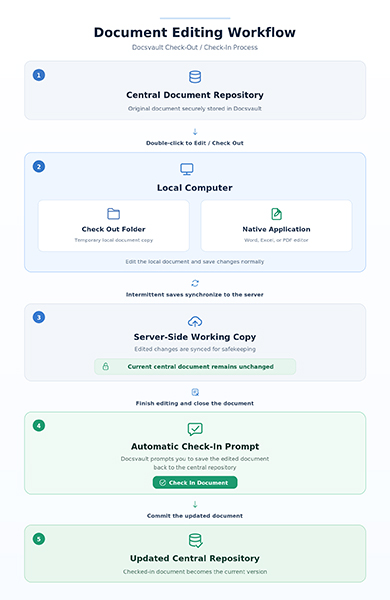
When a document is opened for editing from the central documents repository, a copy of that document is saved to a temporary "Check Out Folder" on you local computer. This local copy of the document then opens in its native application and you can start making necessary edits to the document. Any intermittent saves to the document are synced back to the Docsvault server; However, these changed do not overwrite the current document in the central document until the document is actually checked back in.
Once you are done with your edits and close the document, Docsvault automatically prompts you to save (check-in) the document back to the server in most cases. For rare applications/cases you do not see the checkin dialog after closing a document, you can simply check the documents back in from within the Docsvault interface.
•Documents can be explicitly opened for either View only or Editing from the context menu of the document. •You can set your check-out folder location from the 'Check In / Check Out' in 'Tools > Options' •Docsvault will automatically handle Check-out and Check-in of dependent files (e.g dependent resources for .html, .htm and SolidWorks .SLDASM files)
|

•You must have New Version/Check Out rights to the document or be the document owner to check it out for editing.
|

 Document Edit Workflow |
Identify Checked-Out Documents
Checked-out documents are identified by an icon overlay and filename color:
•A lock icon appears on the document:
•Green lock / Dark Green filename – checked out by you.
•Red lock / Dark Red filename – checked out by another user.
•Multiple selected files or folders can be checked out and opened in their associated applications. •When a single folder is checked out, Docsvault opens the location of the checked-out folder on your local computer. •Up to five documents can be opened in their associated applications at one time during check-out. All selected documents are checked out, but only the first five are opened automatically. •When checking out a folder, you can choose to include files in its subfolders. For more information see Check In / Check Out in 'Options'. •The Docsvault file ID and version number are displayed with the filename in the title bar of supported Microsoft Office applications.
|
Working with a checked out document
Even though you are editing a copy of a document in your local check out folder, Docsvault attempts to sync back any incremental changes saved while the document is still open in its application as a safety measure against computer crashes or mishaps. When you finish editing the document and close the document, Docsvault will automatically prompt you to check the document back to the server. You can also manually initiate the check-in of a document from its context menu in the Docsvault application.
Automatic Undo Check Out
When you check out a document and close it without making any changes, Docsvault automatically undoes the checkout and releases the lock on the document. The document is released and becomes available for other users to check out.
•The document remains checked out while you continue working on it. To make your changes available in the document repository, you must check in the document.
|
When you check in a document, you can either replace the current version or create a new version.
•Select the checked out document.
•From the File menu, select Check In. Or
Right-click the document and select Check In.
•If Create New Version is not selected, the current version is replaced by the checked-in document. The previous current version is moved to the Docsvault Recycle Bin.
•In Check In window, check the box next to 'Create New Version' if you want to create a new version of the document.
•Click OK.
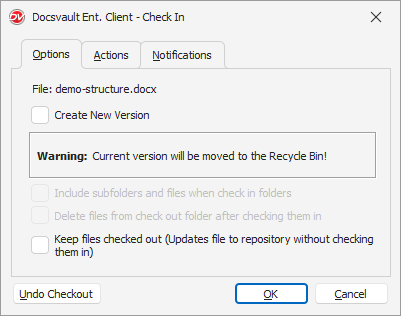 |
Warning: If you check in without selecting Create New Version, the current version is moved to the Recycle Bin and the checked-in document becomes the current version.
Options
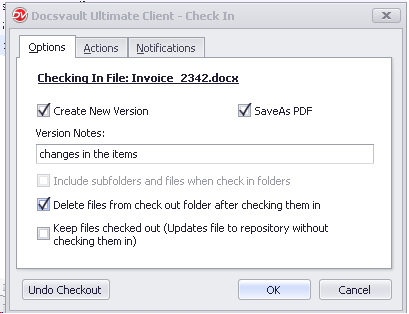
•Enter Version Notes to add a note about the changes.
•Select Save as PDF to create a PDF version when supported.
•Select the option to delete the file from the check-out folder after check-in, if required.
•Select Keep files checked out if you want to update the repository while continuing to work with the document checked out.
 Check In a document
|
Actions
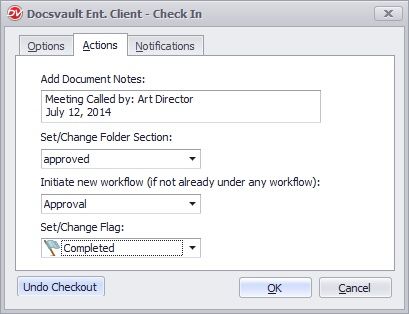
•Add document notes.
•Set or change the folder section.
•Set or change the document status.
•Initiate a workflow.
 Check In a document
|
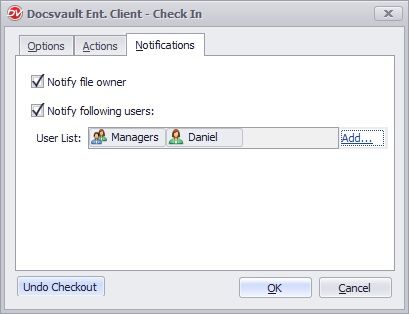 Notifications |
Notifications
You can notify the document owner or other Docsvault users when the document is updated.
The selected users receive a notification email and alert showing that the document was updated, who updated it, and where the document is stored.
Check-In Result
Click OK to complete the check-in.
The document is saved to the Docsvault repository and the checkout lock is released.
If you created a new version, the new version is added to the document's version history.
If you replaced the current version, the previous current version is moved to the Docsvault Recycle Bin.
•You can also save versions of documents in different file formats. Example: A word document can have a PDF version available to all users and reverted to word format for changes and updates when necessary. |
If a document has been forced checked in by someone or its checkout was undone from the Docsvault interface, but the document is still open in its associated application, you can continue making changes to the local copy.
When you save and close the document, Docsvault detects that the original checkout is no longer active and displays the following options:
|
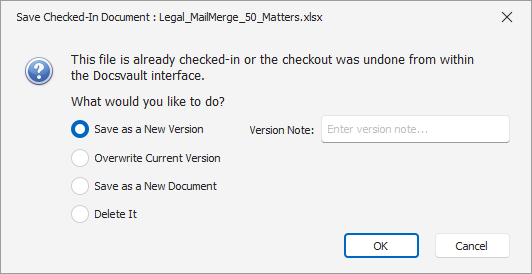
Select one of the following options:
•Save as a New Version - saves the changes as a new version of the existing document. Enter a Version Note, if required.
•Overwrite Current Version - replaces the current version with the changed document.
•Save as a New Document - saves the changed file as a separate document.
•Delete It - discards the changed local copy.
Click OK to apply the selected action, or Cancel to close the dialog without saving the changes to Docsvault.
Note: This message appears when the document is still open after it has been checked in or its checkout has been undone from the Docsvault interface.
If a document is checked out by another user, you can send a request asking the user to check it in.
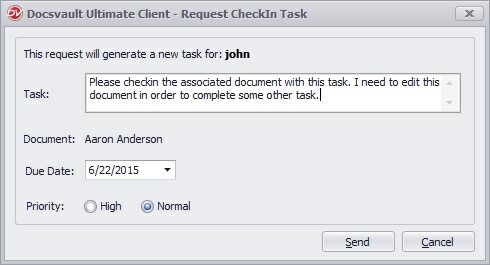 Request CheckIn Task |
•Select the checked-out document.
•Right-click the document and select Request CheckIn.
•Enter the required task details.
•Click Send.
The user receives an email notification and an alert. The request also appears in the user's Task In panel.
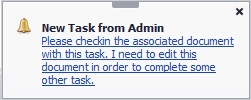 Request CheckIn Task |
If you do not want to save the changes made to a checked-out document, you can undo the checkout.
•Select the checked out document.
•From the File menu, select Undo Check Out Or
Right-click the document in the list view and select Undo Check Out from the context menu..
•Confirm the action, if promted.
Docsvault closes the document and cancels the checkout without saving the changes made during the checkout. The discarded copy is moved to the Docsvault Recycle Bin and is marked with [Undocheckout Copy] in the description.
The green lock is removed from the document icon after the checkout is undone.
•The checked out file can not be overwritten by using any copy/paste or drag and drop options until checked in.
|
Check in someone else' document
If a document remains checked out by another user, a user with Undo Checkout rights can undo the checkout.
•Select the checked-out document.
•From the File menu, select Undo Check Out.
Or
•Right-click the document and select Undo Check Out.
•Confirm the action, if prompted.
The checkout is cancelled and the document is released. The discarded checked-out copy is moved to the Docsvault Recycle Bin as an [Undocheckout Copy].