Email Save Options in Outlook:
You can configure how Docsvault handles emails and their attachments when you save them from Microsoft Outlook.
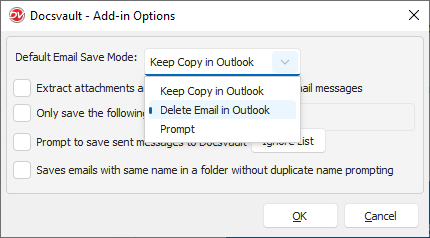
Open the Docsvault Add-in Options dialog to configure these settings. Click Options.
 |
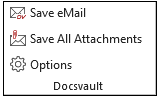
Default Email Save Mode
You can configure what happens to an email in Outlook after it is saved to Docsvaul from Options. Depending on the selected setting, you can:
•Keep Copy in Outlook - keeps the original email in Outlook after saving it to Docsvault.
•Delete from Outlook - removes the email from Outlook after it is saved to Docsvault.
•Prompt for Action - prompts you to choose what to do with the email after saving it.
Extract Attachments and Save Them Separately
Select Extract attachments and save them separately with email messages to save the email attachments as separate documents in Docsvault instead of storing them only as part of the saved .msg file.
Save Only Selected Attachment Types
Select 'Only save the following attachments' and enter the required file extensions to save only attachments of the specified types.
For example, you can specify: .pdf, .docx, .xlsx
This allows you to exclude attachments that you do not want to save to Docsvault.
Prompt to Save Sent Messages
Select Prompt to save sent messages to Docsvault if you want Docsvault to prompt you when saving sent emails.
Use Ignore List to specify email addresses or other entries that should be excluded from this prompt.
Save Emails with the Same Name Without Prompting
Select Saves emails with same name in a folder without duplicate name prompting to allow emails with the same name to be saved in the same Docsvault folder without displaying a duplicate-name prompt.
Note: This setting controls duplicate email names. It is separate from Duplicate Email Detection, which checks whether the same email has already been saved to Docsvault.