When an Outlook email contains multiple attachments, you can save the attachments to Docsvault in a single operation without opening and saving each attachment separately.
Save Email Attachments
When you receive an Outlook message containing several attached files, you don't have to open and save each file separately in Docsvault. You can save multiple attachments to the same location in a single step. You can also choose to save a single specific attachment by choosing "Save to Docsvault" from the attachment's context menu.
•In Microsoft Outlook, select the email or emails containing the attachments.
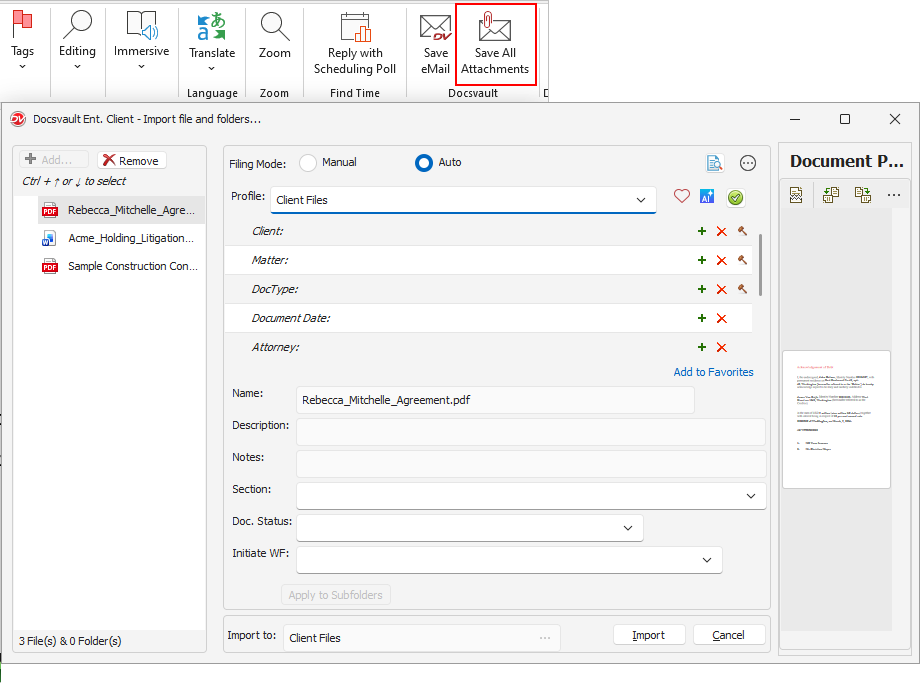
•From the Docsvault Outlook Add-in, select Save All Attachment.
•The Docsvault Import dialog opens.
•In the Filing Mode section, select Manual or Auto:
oManual: You will be prompted to select the destination.
oAuto: Docsvault automatically files the email based on the configured profile and filing rules.
•In the Profile field, select the appropriate document profile.
•Enter or select the required index values.
•Review or enter the Name, Description, and Notes.
•Select the required Section, Doc. Status, and Initiate WF values, if applicable.
•Check the Import
•Docsvault saves the selected attachments to the specified folder.
•Review the email in the Document Preview panel. The preview displays the email content and shows any attachments included with the email.
•Click Import.
 Save Email Attachments in Docsvault |