You can run multiple searches at the same time by opening each search in a separate tab.
Click New Tab to open a new search tab. The search page provides quick access to the available search options, allowing you to start another search without closing the current search results.
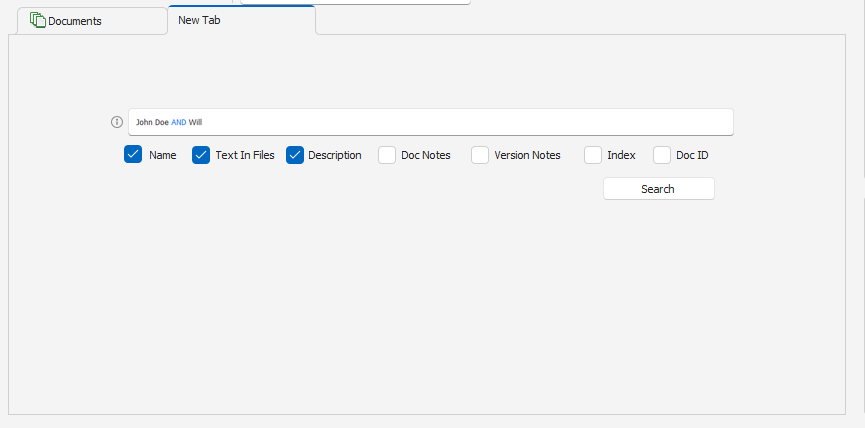 New Tab showing the search options and search fields |
Enter your search text and select the fields you want to search. Click Search to run the search.
Search Text Options
When searching text, you can use the supported search formats and operators to control how Docsvault matches your search terms.
Click the Information icon next to the search field to view the Content Search Usage Reference.
The reference includes:
•Single Word - Finds different forms of the word. For example, searching for photograph can find photography, photographs, and photographer.
•Multiple Words - Finds words within three words of each other.
•Exact Phrase - Enclose search terms in quotation marks to find the exact phrase.
•AND, OR, NOT - Use logical operators between search terms.
•Proximity Searches - Find words within a specified distance of each other.
Search Fields
You can search for documents using one or more search fields available in the New Tab search.
Enter a search term and select the fields you want to search. The available fields are:
•Name - Searches the document filename.
•Text in Files - Searches text contained within documents.
•Description - Searches the document description.
•Doc Notes - Searches document notes.
•Version Notes - Searches notes associated with document versions.
•Index - Searches index field values.
•Doc ID - Searches by the document's System ID.
Searching Multiple Fields
You can select multiple fields to search for the same keyword. When Name, Text in Files, Description, Doc Notes, Version Notes, and Index are selected together, Docsvault uses OR between these fields.
For example, enter:
Acme Corp
and select:
Name | Text in Files | Description | Doc Notes | Version Notes | Index
Docsvault returns documents where Acme Corp is found in any one of the selected fields.
Example:
•Name: Acme Corp Agreement.docx → Match
•Description: Agreement for Acme Corp → Match
•Text in Files: Acme Corp agreement → Match
•Doc Notes: Review Acme Corp contract → Match
•Version Notes: Updated for Acme Corp → Match
•Index: Acme Corp → Match
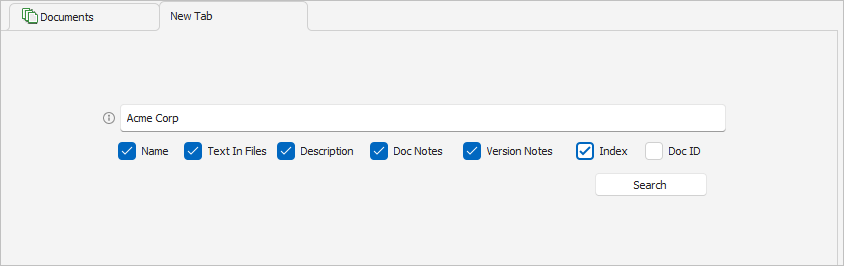 New Tab Search - Multiple-Field |
Note: The Index field uses an exact phrase search. For example, searching for Acme Corp matches an index value of Acme Corp, but not Acme Corporation.
Searching by Document ID
To search for a specific document, select Doc ID and enter the System ID.
For example:
FL00000946
Select Doc ID and click Search.
When Doc ID is selected, the other search fields are disabled. Docsvault searches only for the specified Document ID.
Note: Doc ID cannot be combined with Name, Text in Files, Description, Doc Notes, Version Notes, or Index in the same search.
Search Operators
For searches using Name, Text in Files, Description, Doc Notes, or Version Notes, you can use supported search operators such as AND, OR, NOT, exact phrases, and proximity searches.These Boolean operators cannot be used for index field searches.
Click the Information icon next to the search field to view the Content Search Usage Reference.
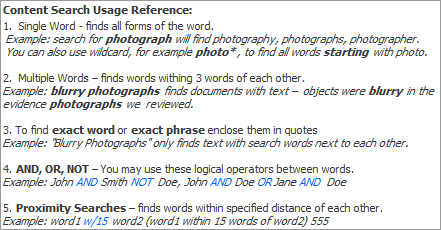 Content Search Usage Tooltip |
Note: The search behavior depends on the fields selected. Index uses exact phrase matching, while Doc ID is searched separately.