Docsvault can launch Litera Compare to compare documents stored in Docsvault. You can compare supported Word, Excel, and PDF documents, including different versions of the same document.
•Litera Compare must be installed on the client computer, and you must have a valid Litera Compare license. Docsvault provides the integration with Litera Compare; the Litera Compare application performs the comparison. |

You can configure Litera Compare from Tools > Options > Integrations. See Document Compare Options.
Compare Documents
You can compare two documents stored in Docsvault, including documents located in different folders.
•Select the first document.
•Right-click and select Compare.
•Select the second document when prompted.
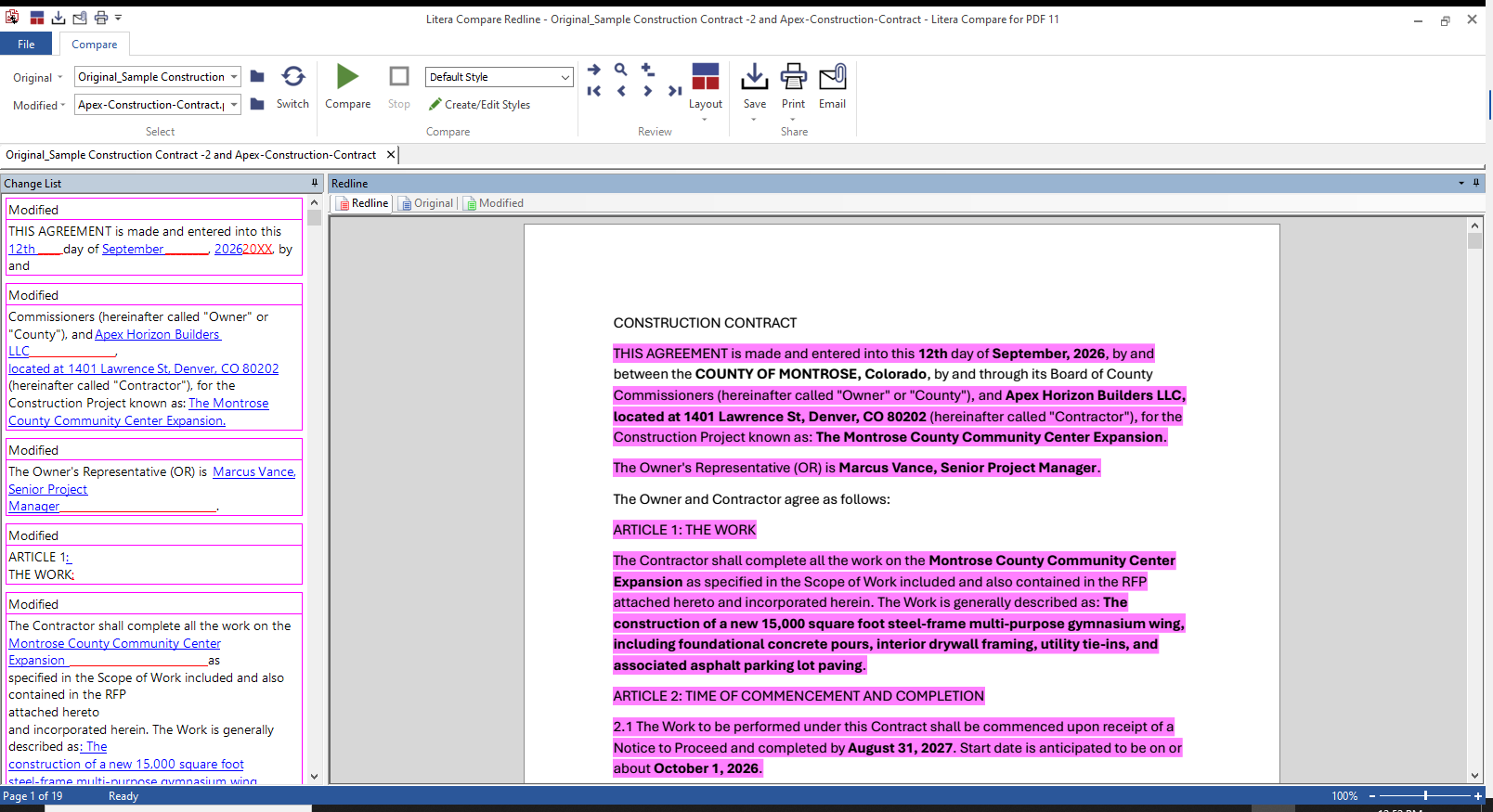
•Docsvault opens the selected documents in Litera Compare.
•Review the comparison results in Litera Compare.
 |
Compare Different Versions of a Document
You can compare two versions of the same document.
•Open Version History for the document.
•Select the versions you want to compare.
•Select Compare.
•Docsvault opens the selected versions in Litera Compare.
•Review the differences.
Note: Litera Compare supports comparison of Word, Excel, and PDF documents.
Save the Comparison Result
After completing the comparison in Litera Compare, you can save the resulting redline to Docsvault.
•Print > Docsvault PDF to save a copy in PDF format.
•Save to Docsvault to save a copy within Docsvault.
Default Document Comparison
If you do not use Litera Compare, select Default as the document comparison application. This allows you to continue using Docsvault's default comparison functionality.