New Features
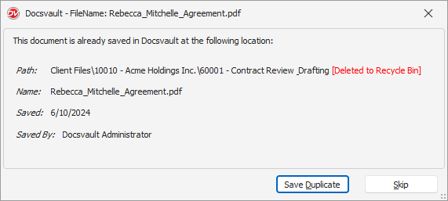
Duplicate Document Detection Prevent unnecessary duplicates even before they enter your Docsvault repository. Docsvault now detects when the exact same document already exists in the repository, even if it has a different filename or is stored in another location.
When a duplicate is found, Docsvault shows the existing document's location and details, so you can choose Save Duplicate or Skip.
This helps prevent redundant copies and keeps your repository organized |
 |
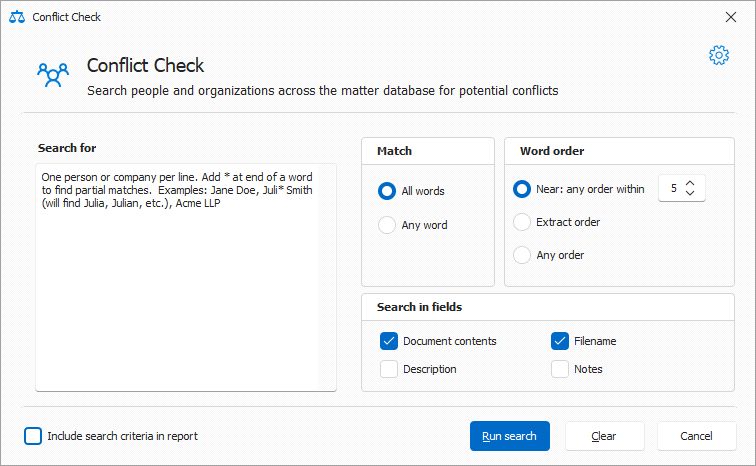
Conflict Check Check for potential conflicts before accepting a new matter. Conflict Check lets you search documents for relevant names or terms and generate a report of your findings. •Search document contents, filenames, descriptions, and notes. •Search using All words or Any word. •Set the word order and proximity for the search. •Generate a report with the search criteria and results.
|
|
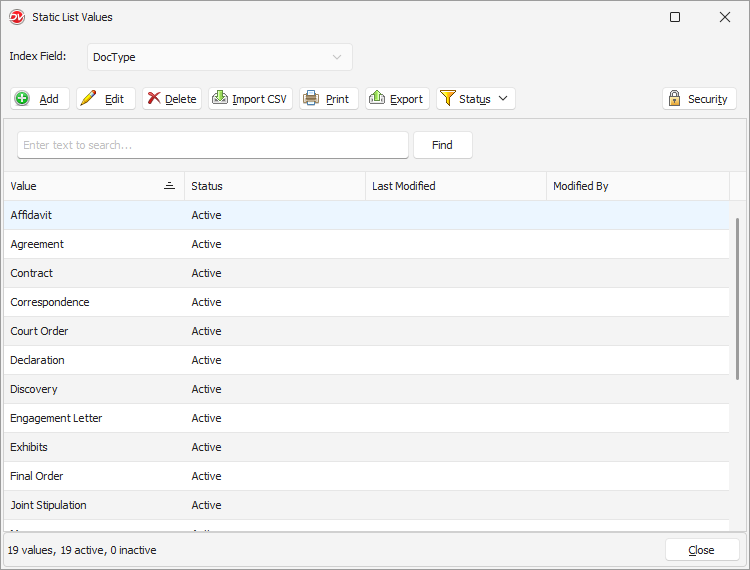
Easier Lists Management Manage lists such as Client, Matter, and DocType more easily, with simpler ways to update values, import data, and control who can make changes.
You can now: •Add, edit, and delete static list values from Tools > Static Lists. •Import multiple values using Import CSV. •Export and print static lists. •Manage the active/inactive status of list values. •Manage static index values directly from Edit Values in a Profile. •Assign Add, Edit, and Delete permissions to users and groups for individual static lists. |
|
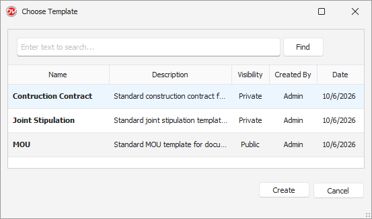
Document Templates •Create and manage reusable Document Templates for commonly used documents. •Set templates as Private or Public. •Create new documents from templates directly from the Templates menu or from Docsvault’s Microsoft Office Add-in toolbar.
|
|
Save Documents to Multiple Locations Save time by filing one document to multiple Docsvault locations in a single import. Select multiple filing metadata values to save the document to the corresponding locations without repeating the import. •Dependent location fields: When the filing path uses paired fields such as <<Client>>\<<Matter>>, specify the corresponding values as pairs. For example, you can file a document to multiple Client/Matter locations by selecting multiple Client and Matter values. •Independent fields: When the filing path contains independent fields, such as <<Department>>\<<DocType>>, you can specify multiple values for each field. For example, selecting Legal and HR for Department and Agreement twice for DocType files the agreement in: oLegal\Agreement oHR\Agreement
|
|
Introducing Refined Save and Edit Workflows
|
|
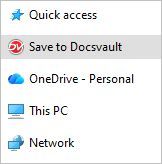
Save to Docsvault from Any Application
|
|
Simpler Editing Process Go to Tools > Options > Check In/Check Out, select Edit (Checkout), and specify the file extensions that should be opened for editing automatically. This makes everyday editing more convenient while avoiding unnecessary checkouts for view-only files such as images and emails. |
|
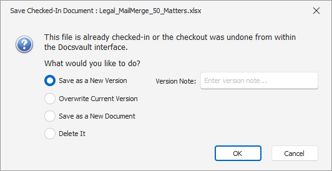
Saving Changes After Check-In |
|
Save Incremental Changes |
|
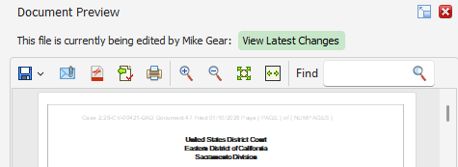
View Latest Changes in Checked-Out Documents Stay up to date while others edit. The Preview window shows who has a document checked out and offers View Latest Changes so you can see their most recently synced edits without waiting for check-in..
|
|
New in Search
|
|
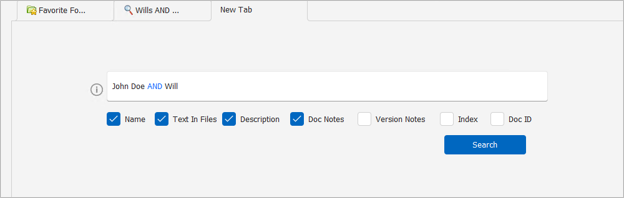
Search in New Tab Run searches directly in a new tab in separate tabs without losing earlier results. The New Tab search supports AND, OR, NOT, exact phrase, and proximity searches.
|
|
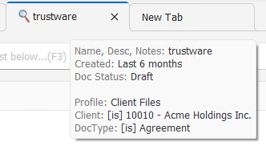
Improved Search Tab Identification |
|
Profile Search Improvements •When searching within both ‘Name,Desc,Notes’ field and ‘Text inside files’, results will now only include documents that satisfy both text field criteria (AND Search) •The name, desc., notes search field now supports operators like AND, OR and NOT •Clear All Fields •Select Dependent Values
Large Search Results For searches returning more than 500 results, choose to load the latest 500, load all results, or narrow your search first - helping you manage large result sets more efficiently. Apply Search Options to All Users Administrators can now apply their selected Search Options to all Docsvault users directly from the Search Options dialog. The Apply to all users option is available only to members of the Administrators group. Full-text search now indexes select common words that were previously excluded by the text indexer by default. For example, “will” can be an important word in legal documents and is now searchable in filenames, descriptions, notes, and document content.
|
|
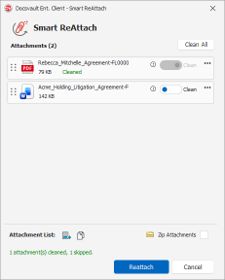
Smart ReAttach in Outlook
•Clean metadata from individual attachments or all applicable attachments. •Rename, remove, or reorder attachments before reattaching them. •Add an attachment list to the email body or copy it to the clipboard. •Optionally reattach attachments as a ZIP file. |
|
Docsvault File Menu Options in Microsoft Office •Save as Version: Save an open checked-out document as a new version without closing it. You can enter version notes before saving. •Open: Open another document from Docsvault directly from the Office File menu.
|
|
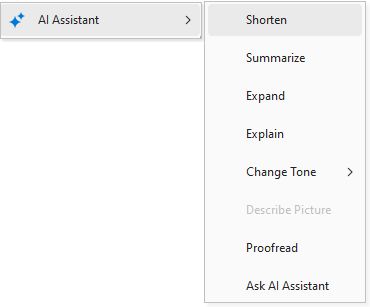
AI Assistant You can select content in a document and use AI Assistant to: •Shorten •Summarize •Expand •Explain •Change Tone •Describe Picture •Proofread •Ask AI Assistant The available options depend on the type of document and content selected.
|
|
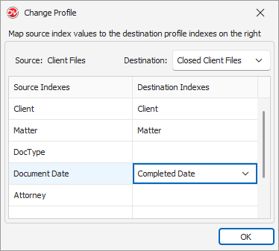
Move Documents or Change Profile in Bulk |
|
Review and manage deleted documents more easily, without first restoring them. •Preview files - Open a deleted file locally to review its contents or copy information before deciding whether to restore it. •Export files - Export deleted files directly from the Recycle Bin. •Undo Checkout - Files discarded through Undo Check Out are now moved to the Recycle Bin and identified with [Undocheckout Copy] in the description. •Deleted Versions - Deleted versions are moved to the Recycle Bin as separate documents and identified with [Deleted Version Copy] in the description. A confirmation message is also displayed before deleting a version. •Rearranged column order and widths to make it easier to view deleted items.
Quick Edit for Document and Folder Descriptions Edit document or folder descriptions faster: select an item in the document list and press F7, without opening Properties.
Favorites and Recent Items
•Favorites Files – Favorite files are now available from the new Favorites node under My Workspace. Select Favorite Files to view the files directly in the central document list panel. The “Files” icon in the top favorites bar now shows this new favorite document list. •Favorite Folders – Favorited folders are now available from the new Favorites node under My Workspace. You can also pin this node to the top Favorites bar for quick access. •All Recent Items – The former Accessed list is now All Recent, bringing created, modified, and opened items into one convenient view. You can now configure Docsvault to save emails with the same name in the same folder without displaying a duplicate-name prompt. Enable Save emails with same name in a folder without duplicate name prompting in Docsvault’s Outlook Add-in Options.
New Keyboard Shortcuts Get to common actions faster with new keyboard shortcuts for searching, navigating folders and tabs, managing documents, and working in import and profile dialogs. New shortcuts include Quick Search (Ctrl + E), Profile Search (Ctrl + S), Folder Search (F4), tab and panel navigation, folder navigation, Edit Description (F7), and other common document management actions.
See Docsvault Keyboard Shortcuts for the complete list of available shortcuts.
Launch Documents in Litera Compare Compare documents without leaving your Docsvault workflow. If Litera Compare is installed, you can launch comparisons directly from Docsvault. •Compare Word, Excel, and PDF documents stored in Docsvault. •Compare documents located in different Docsvault folders. •Compare different versions of the same document. •Configure Litera Compare as the comparison application from Tools > Options > Integrations.
Requirement: A valid Litera Compare license and installation are required. Docsvault provides the integration; Litera Compare performs the document comparison. Email-Based Two-Factor Authentication for Shared and Document Request Links Add an extra verification step to public shared links and document request links. When email-based two-factor authentication (2FA) is enabled, Docsvault sends a verification code to the specified recipient email address before granting access. Advanced Import Add-on - File Date Mapping Preserve source file dates during Advanced Import by mapping Created Date, Modified Date, and Accessed Date from your CSV file. If a date is missing or invalid, Docsvault uses the source file’s actual date.
Recycle Bin Delete Policy Filters The Delete from Recycle Bin policy now allows you to filter items using additional criteria: •Description text contains – permanently delete items whose description contains specified text. •Filename contains – permanently delete items whose filename contains specified text. •These filters can be used along with the Items deleted before setting to target specific Recycle Bin items for permanent deletion.
|
|
Enhancements
Improved Automatic Document Stamping
•Improved stamping method: Automatic stamping now uses a field-based method to place the defined stamping pattern in the document footer. This provides better control over the stamp position and resolves issues that could occur when existing footer content was present.
•Flexible positioning: You can position the stamp left, center, or right in the footer. Left alignment is recommended when the document already contains footer content.
•Manual positioning: You can move the stamp to a more appropriate location after it is inserted. Docsvault preserves the position you set and does not automatically reposition it.
•Improved version stamping: Version Number stamping has also been improved to ensure the version information is inserted correctly.
Document Status Deletion Warning
Before deleting a document status (Flags), Docsvault warns you if it is assigned to files or folders or used in a workflow transition. This helps prevent accidental removal of an in-use status and its associations.
File ID and Version Included in Exported Filenames
When enabled by an administrator, exported filenames include the Docsvault File ID and version number, making files easier to identify and trace outside the repository.
Example:
Rebecca_Mitchelle_Agreement-FL00000036-v2.pdf
This naming convention now also applies when:
•Dragging and dropping a file directly from Docsvault
•Dragging and dropping a specific version of a file
•Dragging a file from Docsvault into a new Outlook message as an attachment
•Using the Attach option from the Docsvault Outlook Add-in to attach a file to a new message
•This global option is enabled on the server side
This makes it easier to identify the source file and exact version after exporting or attaching it.
Preserve Modified Date When Restoring an Older Version
When you make an older version of a document the current version, Docsvault now preserves the document's existing Modified Date instead of updating it to the current date.
Direct Relogin After Server Connection Loss
When the server connection is lost, clicking Relogin now directly reconnects the user to Docsvault without requiring additional login steps.
Save As in PDF Editor
Use Save As in the Docsvault PDF Editor to save the edited document as a new file.
When you select Save As, Docsvault saves the document with the new filename and closes the original document.
Create PDF from Word Toolbar – Enhanced PDF Opening
Newly created PDFs now open automatically in View (Read-Only) or Edit (Checked-Out) mode based on the double-click mode set in Tools > Options > CheckIn/Out.
Update Accessed Date for Imported Documents
When saving older documents or emails while retaining their original system dates, Docsvault now updates the Accessed Date. This makes the imported documents and emails available in the All Recent list for quick access.
Filename Suggestions - Updated Sorting
The filename suggestion list in the Import dialog has been updated to display predefined filename suggestions first and recently entered filenames at the bottom, making the predefined options easier to access.
Updated Outlook Add-in Icons
The Docsvault Outlook add-in now includes updated icons for Save Mail, Save All Attachments, and Options, providing a more consistent and recognizable interface.
iFilter Validation During Database Setup Server
During initial database setup with your own Microsoft SQL Server, Docsvault checks for required iFilters after validating credentials. If any are missing, it warns you which formats will not support full-text content search and requires acknowledgment before proceeding.
Transfer Ownership When Deleting a User
When deleting a user, administrators can transfer ownership of that user’s folders, documents, and other owned items to another user, helping maintain continuity and access.
The Delete and Replace option transfers ownership to the selected user before deleting the account. This operation cannot be undone.
Enable Task Email Alerts by Default
Task email alerts are now enabled by default when users create or modify tasks. Users can still change their email alert preferences as needed.
200-Character Name Limit
Cabinet, folder, and filenames can now be up to 200 characters long, including spaces and file extensions.
Show System ID in Navigation
The Docsvault navigation dialog now displays the System ID for files and folders, making it easier to identify and reference specific items in the repository.
Track Movements Audit Template - Create Event Added
The default Track Movements audit template now includes the Create event. This allows the audit trail to record when a document or folder is created, along with the existing movement-related activities.
Rename “Open File Location” to “Go to Location”
The right-click menu option Open File Location has been renamed to Go to Location. This option is available when working with documents in search results and lists such as Recent Files and Checked-Out Documents, and takes you directly to the document's location in Docsvault.
Improved Import Dialog Focus
The Import dialog now automatically sets the default focus based on the filing mode:
•Manual Filing: Focus starts on the Filename field.
•Auto Filing: Focus starts on the Profile selection.
Automatic Metadata for Document Request Uploads
Uploaded files can now automatically inherit metadata from the Docsvault location where they are saved when index inheritance is configured for that location.