You can create a new document from a Document Template and then save it to the required location in Docsvault.
Create a Document from a Template
Create a new document using an existing Document Template.
•From the toolbar, click the drop-down arrow next to Templates.
•Select New from Template.
•In the Choose Template dialog, select the required template.
•Click Create.
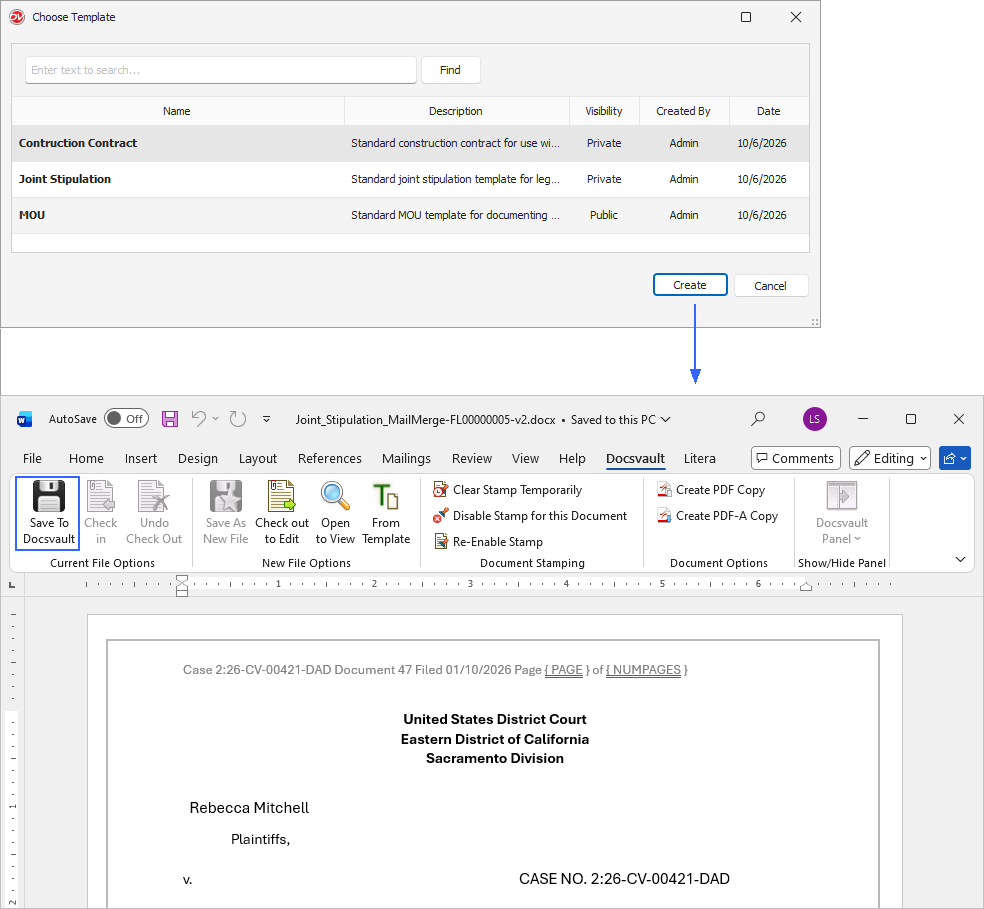 Create a Document using Template |
•The document is created from the selected template and opens in its associated application.
•Make the required changes to the document.
•Save the document to Docsvault using one of the available Docsvault saving options:
▪ Docsvault Add-in > Save To Docsvault
▪ File > Save (Docsvault)
▪ Word Save Button
•Navigate to the Docsvault location where you want to save the document and click Create.
•In the Docsvault Import dialog,enter the required document information.
•Click Import to save the document to Docsvault.
A new document based on the selected Document Template is saved to the specified location in Docsvault. The original Document Template remains unchanged.
Note: The method available for saving the new document to Docsvault depends on your Docsvault Microsoft Office Add-in and Save configuration.