This feature is available only in Docsvault Enterprise & Ultimate Editions
|

Document Templates
Document Templates allow you to store drafts of commonly used documents in Docsvault so that you can create new documents from templates quickly.
A Document Template contains one file. You can use templates for documents that follow a standard format, such as contracts, agreements, forms, letters, and other frequently used documents.
For example, if your organization uses a standard contract format, you can save the draft contract as a Document Template. When you need a new contract, you can select the template, make the required changes, and save the document to the appropriate location in Docsvault.
Managing Document Templates
You can create, edit, and delete Document Templates from Templates > Manage Templates.
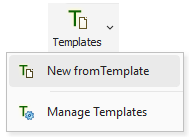 Document Templates Option |
Create a Document Template
Create a reusable Document Template that users can select when creating a new document.
•From the toolbar, click the drop-down arrow next to Templates.
•Select Manage Templates.
•In the Manage Templates window, click New.
•In the Document Template dialog, enter a Name for the template.
•Enter a Description to help users identify the template.
•Click the (...) button next to File to browse the file.
•Navigate to and select the file you want to use as the template.
•Under Visibility, select one of the following:
oPrivate: Keeps the template private.
oPublic: Makes the template available as a public template.
•Click Save.
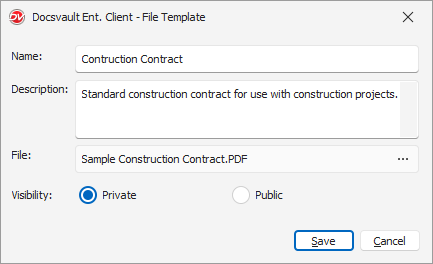 Create a Document Template |
The Document Template is added to the Manage Templates list and is available when you select Templates > New from Template.
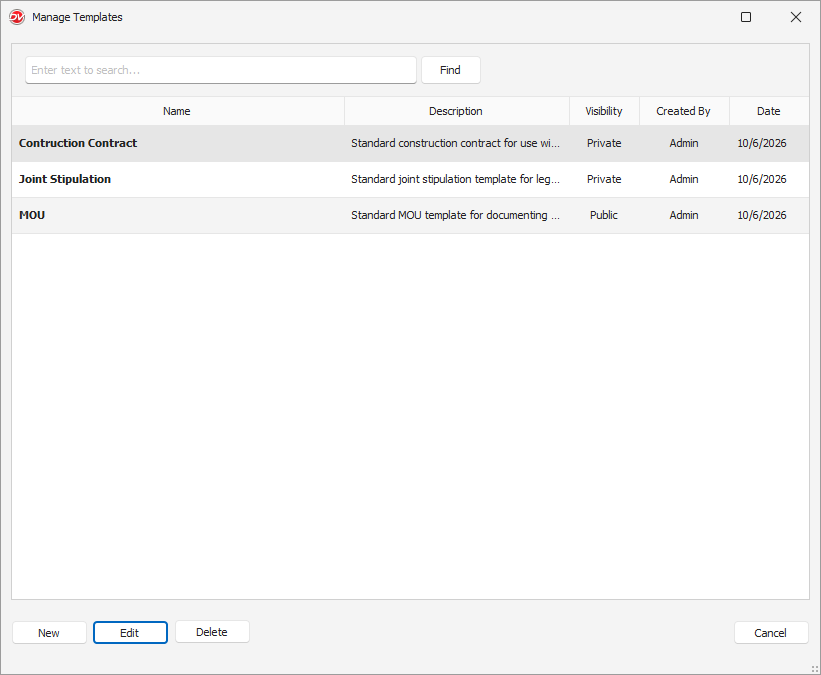 List of Document Templates |
Edit or Delete a Document Template
You can modify or remove an existing Document Template from Templates > Manage Templates.
•From the toolbar, click the drop-down arrow next to Templates.
•Select Manage Templates.
•Select the required template.
•To modify the template, click Edit, make the required changes, and save them.
•To remove the template, click Delete and confirm the deletion.
• Editing or deleting a Document Template does not affect documents that were previously created using that template.
|