Save to Docsvault from Any Application
When saving documents from applications that do not have direct Docsvault integration, you can use the dedicated "Save to Docsvault" location in your Windows explorer. Save documents to Docsvault directly from your PDF editor, downloads from the internet browser or nearly any other business application. Saving to the Save to Docsvault location in Windows File Explorer immediately opens the Docsvault Import dialog.
You can use Save to Docsvault when saving a file through the Applications Save As menu.
Steps to Save
•In the application you are working in, select Save As.
•In the Windows Save As dialog, select Save to Docsvault in Windows File Explore.
•The Import Documents dialog box opens.
•Enter or select the required profile, index values, filename, description, notes, and other information.
•Click Import to save the file to Docsvault.
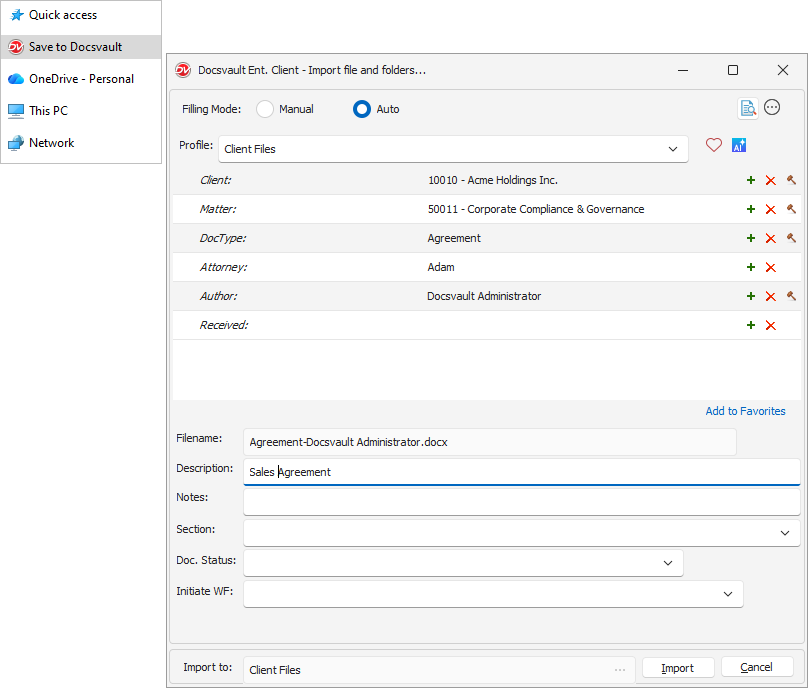 Windows Save As dialog showing Save to Docsvault in Windows File Explore
|
Note: The Import Documents dialog provides the same options available when importing documents directly into Docsvault. See Using "Import Docs"for more information.