How to Connect Related Documents Across Different Folders
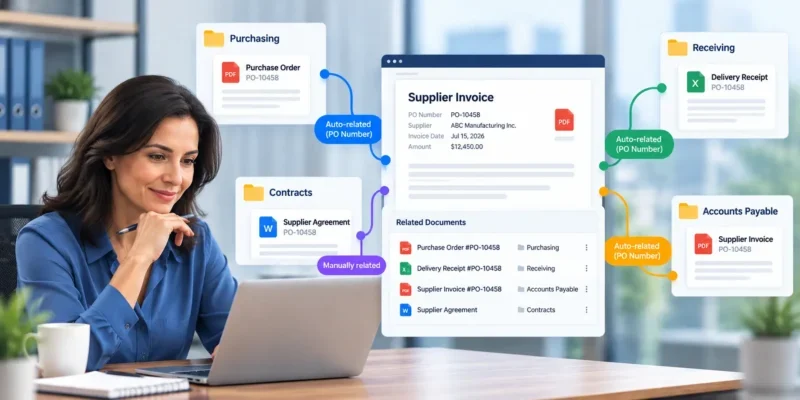
Documents that belong together are not always stored together. An invoice may be filed in an accounts payable folder, its purchase order in a purchasing folder, and the delivery receipt in a receiving folder. In a law firm, an agreement, its amendments, and related correspondence may be stored in different matter subfolders.
This separation often makes sense because documents need to be organized by department, document type, client, matter, or business process. The challenge is finding all the associated records without repeatedly searching for each one.
A document management system can help by establishing relationships between documents, allowing users to access associated records even when they are stored in different folders.
Why Connect Documents Across Different Folders?
Folder structures help organize a repository, but they do not always show how documents in different locations are related.
For example, an accounts team may need to review an invoice alongside its purchase order and delivery receipt. A legal team may need to open an agreement and quickly locate its amendments and supporting correspondence.
Without established relationships, users may need to remember filenames, search for reference numbers, or navigate through several folders to find the complete set of records.
Connecting related documents can help organizations:
- Reduce repeated searches: Navigate from one record to other associated documents.
- Preserve the existing filing structure: Keep documents organized according to departmental or business requirements.
- Improve access to supporting information: Find records that help explain or substantiate a transaction, agreement, or project.
- Support consistent document review: Make frequently used document relationships easier for employees to follow.
There are two useful approaches: manually relating specific documents and automatically relating documents based on shared index-field values.
1. Manually Connect Specific Documents
Manual document relations are useful when users know which documents belong together and want to establish an explicit relationship between them.
Consider a supplier agreement stored in a Contracts folder. Its amendments may be stored in a separate folder, while correspondence related to the agreement may be filed under a different organizational structure.
A user can establish relationships between the relevant records. Later, when someone opens one of those documents, the associated records can be accessed through the relationship rather than located from scratch.
Manual relations are particularly useful when the connection is specific and cannot be determined reliably from a shared metadata value.
Examples of manual document relations
- Linking a signed contract to a specific amendment.
- Connecting a project report to a supporting drawing.
- Relating a legal agreement to associated correspondence and supporting records.
- Connecting a policy document to a related procedure or reference document.
The key is to establish relationships that reflect a meaningful business connection, rather than linking documents simply because they happen to be stored in the same folder.
2. Automatically Connect Documents Using a Common Index Value
When documents share a consistent identifier, manually creating every relationship may be unnecessary. Automatic document relations can establish relationships based on matching values in a configured index field.
An index field stores information about a document, such as a purchase order number, matter number, project ID, or another business reference.
In Docsvault, Auto Document Relations can be configured for an index field. Files and folders with matching values in that field are automatically related.
Example: Relating invoices using a common purchase order number
Suppose a company receives multiple invoices associated with the same purchase order. The documents are filed in different folders according to their purpose.
| Document | Folder | PO Number index value |
| Purchase Order | Purchasing | PO-10458 |
| Supplier Invoice A | Accounts Payable | PO-10458 |
| Supplier Invoice B | Accounts Payable | PO-10458 |
| Delivery Receipt | Receiving | PO-10458 |
The documents share the same PO number, but they are stored in separate folders.
If Auto Document Relations is configured to use the PO Number index field, Docsvault can automatically relate the documents and folders that have the matching value.
A user reviewing Supplier Invoice A can then access its related purchase order, the other associated invoice, and the delivery receipt through the established document relationships.
This helps the accounts team review the records associated with a purchase order without having to search for each document individually.
Important: The PO number must be entered consistently in the configured index field used for Auto Document Relations. A PO number appearing only in the document text or filename does not, by itself, create the relationship. Explore Document Indexing guide.
Other examples of automatic document relations
The same approach can be useful wherever documents share a suitable identifier.
Project documentation: Relate project documents that share a configured Project ID, such as specifications, reports, and supporting records.
Customer records: Connect documents that share a configured customer or account identifier.
Legal matter records: Relate documents that share a configured Matter Number, helping users navigate between records associated with the same matter.
Automatic relations depend on the index field configuration and the consistency of the stored values. Organizations should choose identifiers that represent the intended relationship and ensure that those values are maintained correctly.
3. Document Relations for Legal Matter Management
Law firms and legal departments often maintain documents across client folders, matter folders, correspondence folders, and other repository locations. A single matter may involve agreements, amendments, pleadings, evidence, research, and supporting correspondence.
Document relations can help connect these records without requiring every document to be moved into one location.
Connect agreements and amendments
A signed agreement may be stored in a contracts folder, while subsequent amendments are filed separately. Manually relating the agreement to its amendments gives users a convenient way to navigate between the original document and the associated changes.
Connect supporting matter documents
A legal team may need to review a pleading alongside supporting evidence, correspondence, or other matter-related records. Establishing appropriate relations can make those supporting documents easier to access.
Relate documents using a matter number
Where a configured Matter Number index field is used for Auto Document Relations, matching values can automatically relate documents associated with that matter—even when those records are stored in different folders.
This can be useful for navigating matter-related information. However, sharing a matter number does not necessarily mean that every document is relevant to every legal task; users must still review the records and their context.
Document relations support document navigation and organization. They do not independently determine legal relevance, identify conflicts of interest, or replace a firm’s matter-management procedures.
4. Document Relations vs. Folder Organization and Search
Document relations complement the other methods used to organize and find documents.
| Approach | What it does |
| Folder structure | Organizes documents into a defined repository hierarchy. |
| Search | Locates documents using available criteria, such as filenames, document content, and indexed metadata. |
| Manual document relations | Connects specific documents or folders selected by a user. |
| Automatic document relations | Connects records using matching values in a configured index field. |
For example, a user might search for an invoice by its PO number, open the invoice, and then use its document relations to access the associated purchase order and delivery receipt.
The folder structure remains in place, search helps locate the initial record, and document relations help users navigate between associated records.
These methods solve different problems and can work together within the same document management system.
5. Best Practices for Connecting Related Documents
To make document relations useful and reliable, consider the following practices.
Choose meaningful identifiers
For automatic relations, use index fields that represent a genuine connection, such as a PO number, project ID, or matter number. Avoid using a field that is too broad to distinguish the intended group of documents.
Maintain consistent index values
Automatic relations rely on matching values. Differences in formatting, missing values, or incorrect identifiers may prevent expected relationships from being established.
Use manual relations for specific connections
Some relationships are unique and cannot be inferred from a common index value. For example, a particular amendment may relate to a specific agreement. Manual relations are suitable for these cases.
Keep the folder structure organized
Document relations should complement a clear filing structure, not replace it. Continue organizing documents according to the organization’s business, security, and retrieval requirements.
Review the relationship configuration
When setting up automatic relations, confirm that the selected index field and matching-value behavior support the intended use case. Test the configuration with representative documents before relying on it in routine work.
How Docsvault Supports Document Relations
How Docsvault Supports Document Relations
Docsvault provides Document Relations to help users connect associated documents and folders across the repository.
- Related Documents tab: Access related records from the document’s Related Documents tab in the bottom panel.
- Relationships across locations: Relate documents and folders stored in different folders or cabinets.
- Many-to-many relationships: A document can be related to multiple records, and the reverse association is established automatically when a relationship is created.
- Auto Document Relations: Configure relationships based on matching values in an index field.
These capabilities support both specific, manually established connections and relationships based on consistent business identifiers.
Learn more about the functionality on the Docsvault Document Relations feature page.
Connect Related Documents with Docsvault
When related documents are spread across folders, users should not have to repeatedly search for each supporting record. Manual and automatic document relations provide ways to connect associated information while preserving the existing repository structure.
With Docsvault, organizations can establish specific relationships between documents or configure Auto Document Relations based on common index-field values.
Explore Docsvault Document Relations to see how connected documents can make information easier to navigate across your repository.