Workflow Automation: The Complete Guide to Automating Document Workflows

In the fast-paced world of modern business, efficient document management is crucial for productivity and collaboration. Document workflow plays a pivotal role in how organizations create, review, approve, and distribute documents. Whether you are handling invoice approvals, employee onboarding, purchase authorizations, compliance reviews or expense approval workflows to improve visibility, reduce manual follow-ups, and standardize operational reviews.
This guide covers everything you need to know from what document workflow automation is, to how to implement it, manage advanced routing, and measure the return on investment.
What is Document Workflow?
Document Workflow is the process of creating, storing, tracking, and managing the flow of business documents within an organization. Its primary goal is to ensure that documents are efficiently processed, reviewed, approved, and shared — following a predefined set of rules or procedures.
A document workflow typically involves multiple people across various departments. Common examples include:
- Invoice approvals routed from accounts payable to management
- Employee leave and expense requests escalated through HR and finance
- Project proposals reviewed by department heads before sign-off
- Purchase authorizations passed through budget holders
- Compliance documents reviewed and certified before filing
In a manual workflow, each of these steps relies on human intervention – emails, physical paper, shared drives – creating delays, lost documents, and zero visibility. Document workflow automation replaces those manual handoffs with a structured, rule-based digital process that runs reliably every time.
Why Automate Document Workflow?
Documents are the centre of collaboration and communication for all business information. Today’s organizations need to bring decision-making groups – sales, accounts, customer service, operations – together under coordinated, transparent processes. Manual routing of documents for approval disrupts speed, creates opacity, and introduces human error that can expose your business to risk.
| 60% | of employees can save 30% of their time with business automation, according to McKinsey research. |
| 50% | of organizations have already begun their automation journey – McKinsey Global Institute. |
| 76% | of companies use automation for standardizing or automating daily workflows – Formstack. |
Here is what automation directly solves:
- Transparency: Every participant can see the document’s status, who acted last, and what step is next in real time.
- Accountability: Each workflow step has named participants who are notified and held responsible for their action.
- Speed: Automated triggers and routing eliminate the waiting time between steps that email-based processes create.
- Error reduction: Predefined rules and mandatory index fields prevent documents from moving forward without the required information.
For a broader look at how digital transformation drives these gains, see Digital Workflow Automation: Benefits and Use Cases.
Document Security — Access Control Built Into Every Step
Manual document processes create security gaps at every handoff point. When documents travel by email, sit in shared drives, or pass through physical trays, there is no reliable way to control who has seen them, who has a copy, or whether a sensitive version was forwarded outside the intended approval chain.
Document workflow automation closes these gaps structurally. In Docsvault, access to every document is controlled by user and group-level permissions. You can configure the workflow so documents remain hidden, with access restricted to only the participants assigned to the current workflow step, allowing them to view or act on the document at that stage. This is especially useful for sensitive documents such as contracts, HR records, financial approvals, and compliance certifications that require controlled access throughout the workflow process. Every access event is automatically logged in a tamper-evident audit trail: who opened the document, who approved it, who forwarded it, and when.
For a practical checklist of how to implement these controls, see 6 Best Practices for Achieving Document Compliance with Automation.
Scalability — Handle More Volume Without Adding Headcount
Manual document routing scales linearly with volume: double the invoices, double the processing time, double the staff needed to chase approvals. This creates a ceiling on growth – at some point, the back-office processing burden becomes a constraint on the entire business.
Automated workflows do not have this ceiling. Whether your business processes 50 invoices a month or 5,000, the ap invoice approval workflow runs the same logic at the same speed with the same accuracy. New document types, new departments, and new approval chains can be added to Docsvault’s workflow designer without IT involvement or system rebuilds.
For growing businesses, this is the most operationally significant benefit of workflow automation: the cost of processing each additional document trends toward zero as volume increases, rather than remaining fixed at the manual processing rate.
Collaboration — One System, Full Visibility for Every Participant
Document-driven processes typically involve multiple people across different departments, locations, and time zones. When that collaboration happens over email, each participant works from their own version of events – no one has a complete picture of where the document stands, what comments have been made, or what the next step requires.
Docsvault’s workflow automation centralizes collaboration around the document itself. Every participant at every step works from the same document in the same repository. Comments, annotations, and document notes are visible to all subsequent participants – no context is lost between steps. Workflow managers and designated watchers can see the status of every active workflow instance in real time, without having to chase individual participants for updates.
For teams with remote workers, field staff, or external reviewers, Docsvault’s web and mobile access means collaboration is not constrained by location. A participant on the road receives a notification, opens the document, reads the full comment thread from prior reviewers, adds their own notes, and approves – all from a web browser or mobile device, without the document ever leaving the secure repository.
Read: How Document Management Improves Collaboration in the Workplace
How to implement Workflow Automation with Docsvault
Docsvault provides robust document management software with workflow automation included as a standard feature. It is designed to give organizations better document management, search capabilities, and business process control. Docsvault’s Workflow Management Software facilitates the flow of documents in a digital repository – accurate, timely, and free from the usual hurdles of manual document circulation. Each participant receives timely notifications and exactly the information they need to act.
Below is a step-by-step walkthrough of how to automate your document workflows using Docsvault.
Step 1: Centralize All Your Documents in One Repository
Every Way Documents Enter Your Business – All Captured
Before any workflow automation can work, every document that enters your organization needs to arrive in one place – a single, searchable, secure repository that everyone works from. This is the foundation of document workflow automation: not just going paperless, but eliminating the scattered silos of emails, local drives, shared folders, and filing cabinets that cause documents to get lost, duplicated, or overlooked.
Docsvault captures documents from every source your business uses and brings them into a centralized repository with a consistent filing structure, metadata, and security so the moment a document arrives, it is already organized, searchable, and ready to enter a workflow.
| Capture Method | How It Works in Docsvault |
|---|---|
| Paper Document Scanning | Built-in simple and batch scanning with full post-scan image correction tools. Define scan profiles for different document types – single-page or multi-file batch. OCR automatically reads and converts scanned pages into fully searchable PDFs so content is findable immediately. |
| Windows Explorer & Floating Drop Folder | Drag and drop files directly from Windows Explorer into Docsvault. A floating Drop Folder sits on your desktop so users can drag files, entire folders, and even Outlook emails with attachments straight into the repository without opening the full application. Paste or drop any file from your desktop for instant capture. |
| MS Office (Word, Excel, PowerPoint) | A dedicated Docsvault toolbar is installed directly inside MS Word, Excel, and PowerPoint. Save any document from Office to Docsvault with one click – no switching applications, no manual filing. |
| Microsoft Outlook & Email Management | Save emails and attachments to Docsvault directly from Outlook using the integrated toolbar. For automated email capture, Docsvault connects to your email server and captures specified incoming emails – orders, invoices, faxes, contracts – straight into the repository without manual processing. Full company email archiving is also available. |
| Print to Docsvault | Any application that can print can send documents to Docsvault using the Docsvault virtual printer. Print from your accounting system, ERP, browser, or any other application and the document lands directly in the repository. |
| eForms – Electronic Forms | Create no-code web forms that automatically generate, index, store, and route documents through workflows. Ideal for approvals, onboarding, requests, and other structured processes. |
| Mobile Camera & App | Take a photo of a paper document using your smartphone and upload it to Docsvault using the mobile app. Field teams, remote staff, and mobile workers can capture receipts, delivery notes, and signed forms on the go. |
| Web Browser Upload | Upload documents directly through the Docsvault web interface, accessible from any browser without installing software. Useful for remote users and satellite offices. |
| REST API & Third-Party Integration | Advanced integrations via Docsvault’s standard REST API allow other applications such as ERP systems, CRM tools, accounting software – to send documents directly into the repository programmatically. |
Once Captured: Organized, Secure, and Searchable
Every document captured regardless of its source is filed into Docsvault’s centralized repository following the same consistent structure:
- Predefined folder templates enforce a logical cabinet and folder hierarchy automatically so every invoice goes in the same place, every contract is filed the same way, every HR document follows the same structure.
- Custom index fields (metadata) are assigned at capture – document type, client name, amount, department, status – enabling fast retrieval and workflow trigger rules.
- OCR makes all text content searchable across the entire repository, including scanned documents, so nothing is buried in an unreadable image.
- Version control prevents simultaneous editing chaos. Docsvault tracks every version of every document with full history.
- Audit trail logs every action on every document from the moment it enters the repository – who captured it, who viewed it, who edited it, when.
- User and group-based access control ensures sensitive documents are visible only to authorized people – from the moment they are filed.
Why centralization matters for workflow automation
Workflow automation only works reliably when documents are in a predictable, structured location with consistent metadata.
If invoices arrive by email in one person’s inbox, by post in another folder, and as PDFs in a shared drive, no workflow trigger can reliably catch them all.
Centralizing capture first before building workflows – means every document follows the same path into the same place, and automation can trigger consistently every time.
Learn more: Centralized Document Management System
Step 2: Design Document Workflow without coding
A workflow in Docsvault consists of a series of steps and transactions. Here is how to build one:
- Identify the process you want to automate, for example, invoice approval or employee onboarding.
- Open the workflow designer and define each stage as a separate step.
- Name each step clearly and assign the specific participants who are accountable for that step.
- Assign one or more approvers per step as needed, for example, requiring both a line manager and a finance controller to approve before a payment is released.
- Set mandatory index fields at each step to enforce data capture before a document can proceed.
Invoices, for example, can be routed to specific people based on amount or department criteria. On approval, automated messages are sent to the appropriate personnel for next steps – all without writing a single line of code.

Create a workflow: Upload Invoice → Verify → Approve → Pay.
Set participant at each step: AP clerk → Finance Manager → Director (for invoices over $5,000).
Add an automatic trigger so the workflow starts the moment an invoice lands in the Accounts Payable folder.
On approval, a notification fires to the payments team automatically.
Step 3: Set Automatic Workflow Triggers

Docsvault can initiate workflows automatically — without anyone pressing a button — using two types of triggers:
- Location trigger: A workflow starts automatically when a document is added to a predefined folder. For example, any invoice uploaded to the Account Payable folder auto-triggers the invoice approval workflow.
- Profile trigger: A workflow starts when a document is assigned a predefined document profile. For example, all documents tagged with the ‘New Contract’ profile automatically enter the contract review workflow.
Workflows can also be initiated manually in one click from the main Docsvault interface, giving teams flexibility for ad-hoc processes.
Step 4: Automate Workflow Tasks and Actions

Using Docsvault, you can perform automatic actions on workflow documents when a workflow is initiated, completed, or transitioned from one step to another with no technical skills required. These include:
- Moving or copying files to predefined repository locations
- Auto-creating PDF versions of workflow documents at any step
- Changing document index (metadata) values based on workflow actions. For example, automatically setting ‘Approval Status’ to ‘Approved’ when the document is signed off
- Exporting workflow documents and their profile metadata to a predefined location for third-party system integration
- Delegating workflow tasks automatically to another user when the assigned participant is on leave
These automatic actions eliminate the manual administrative steps that slow teams down and introduce errors between workflow transitions.
Step 5: Advanced – Automatic Actions with Conditional Logic
Docsvault’s Automatic Action feature takes automation further by allowing you to define rules that trigger specific workflow actions only when certain conditions are met without any human decision required.
How it works: You configure a workflow rule that specifies a condition and a resulting action. Docsvault evaluates the condition automatically and executes the action if criteria are met.
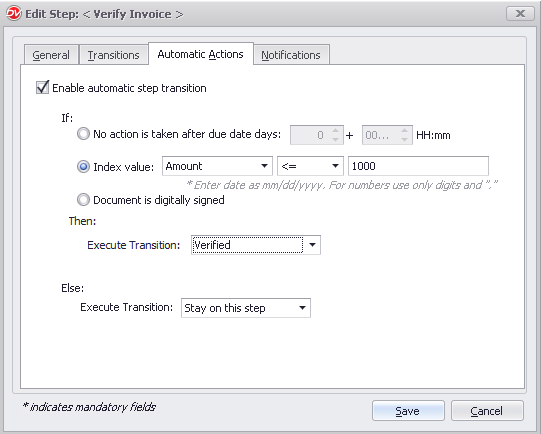
Example 1: Amount-Based Auto-Approval
Condition: Invoice amount is less than or equal to $1,000.
Action: Automatically execute the ‘Verified’ transaction – the invoice is approved without requiring a participant to review it.
Result: Invoices over $1,000 continue through the standard approval chain. Low-value invoices are cleared instantly.
Condition: No action has been taken by a participant within 2 days of the step’s due date.
Action: Automatically escalate the workflow task to the participant’s manager.
Result: Nothing falls through the cracks – overdue tasks are automatically redirected without manual chasing.
Condition: The document has been digitally signed.
Action: Automatically transition the workflow to the next step – for example, move from ‘Awaiting Signature’ to ‘Approved’.
Result: The workflow advances the moment the signature is captured, with no manual intervention needed.
Automatic Actions in Docsvault are straightforward to configure – no coding is required. Once in place, they significantly increase the efficiency and accuracy of business processes, freeing employees to focus on higher-value work rather than monitoring and chasing routine tasks.
Step 6: Advanced — Dynamic Routing
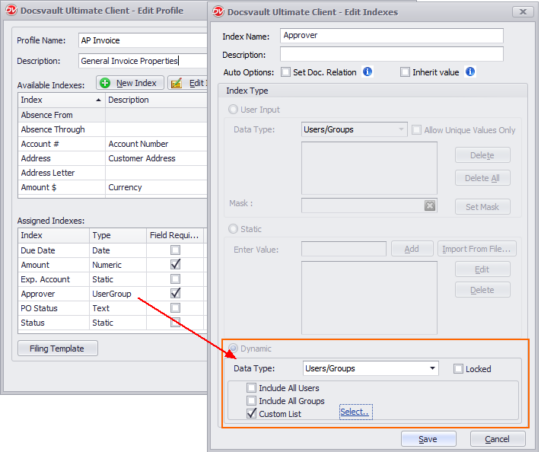
Most workflow systems assign the same fixed participants to every instance of a workflow. This breaks down in real organizations where approvals depend on who created the document, what department it belongs to, or which manager is currently available. Docsvault solves this with Dynamic Participants – a flexible routing system that assigns workflow steps based on the document itself, not a static list.
Three types of dynamic participant assignment:
| Type | How It Works |
|---|---|
| User/Group Dynamic Index Field | A ‘Users/Groups’ index field is attached to the document. Docsvault reads the value in that field e.g. ‘Approver = Mary Webb’ and routes that specific workflow step to Mary automatically. Useful when different document types require different approvers. |
| Document Owner | Any workflow step can be assigned automatically to the owner of the document – the person who created or imported it into Docsvault. Useful for review loops where the originator must confirm or correct the document. |
| Workflow Initiator | Any step can be routed back to the person who started the workflow instance. For example, to notify the submitter of a correction required, or to obtain a final sign-off from the original requester. |
Dynamic workflows can also return to any previous step dynamically — reassigning to the previous participant, or the initiator, based on what the current participant decides. This eliminates the rigid linearity that causes bottlenecks when real-world circumstances change mid-process.
A new supplier contract is created by Alice in Procurement.
The document profile has an ‘Approver’ index field — Alice sets it to ‘James (Legal)’.
The workflow launches automatically. Step 1 routes to James based on the index field value.
James requests a change. The workflow dynamically returns to Alice (document owner) for correction.
Alice resubmits. The workflow continues to the Director (workflow initiator step) for final sign-off.
No admin needed to manage any of these transitions — the workflow handled all routing automatically.
Step 7: Collaboration, Priorities, and Workflow Visibility
Beyond routing and triggers, Docsvault includes a set of collaboration and management tools that make multi-participant workflows practical and transparent:
| Feature | What It Does |
|---|---|
| Workflow Priority | Flag urgent workflow instances so they surface at the top of the participant’s queue – urgent documents never get buried. |
| Adjustable Due Dates | Change the due date for any workflow step on the fly without disrupting the rest of the process. |
| Document Notes & Comments | Participants can attach comments and notes to the Document Notes field during workflow — visible to all subsequent participants. |
| Mandatory Index Fields | Require participants to fill in specified fields before they can transition a workflow to the next step — ensuring data is captured at every stage. |
| Attached Documents Visibility | Supporting documents attached during workflow are always visible alongside the main document — participants always have full context. |
| Set Description Action | A workflow transition can automatically update the document’s description to reflect its current status — e.g. ‘Approved by Finance, awaiting Director sign-off’. |
| Workflow History & Reports | Every action taken in every workflow is logged with timestamps and participant names. Built-in individual and manager-level reports let you identify bottlenecks and assess process efficiency. |
Step 8: Automate Workflow Notifications and Reminders
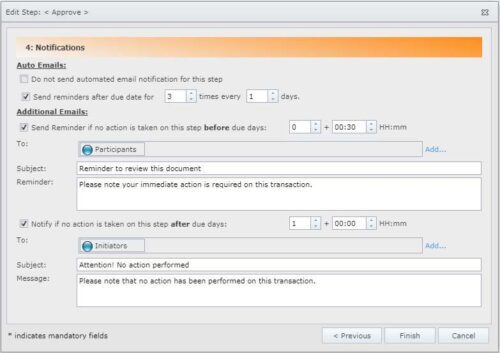
When executing critical business documents, time is everything. Docsvault keeps every participant and manager informed with automated, configurable notifications:
- Email notifications are sent to participants the moment a task is assigned to them.
- Reminder alerts fire automatically when a task is approaching or has exceeded its due date.
- Escalation notifications are sent to managers when a participant has not acted within a defined period.
- Watchers – users designated to monitor a workflow without participating – receive status updates as the workflow progresses.
Workflow managers can supervise the entire process and have the authority to transition or cancel a workflow at any point. Administrators can also allow workflow initiators to customize the list of managers and watchers for each workflow instance they start.
Step 9: Review and Approve Workflow Processes from Any Device

Docsvault is accessible from desktop, web browser, and mobile app – meaning workflow participants can review and approve documents wherever they are.
On receiving a workflow notification, a user on the road can open the Docsvault mobile app, view the document, read all prior comments and the full workflow history, add their own notes, and approve or transition the workflow – all without being at a desk. No approvals are held up because a decision-maker is travelling.
Workflow Automation Use Cases by Department
Document workflow automation applies across every department that handles structured, multi-step document processes. Here are the most common use cases:
| Department | Workflow Automation Examples |
|---|---|
| Accounts Payable | Invoice capture, amount-based auto-approval, multi-level approval routing, payment notification |
| Human Resources | Employee onboarding document routing, leave request approvals, expense claim processing, performance review cycles → Expense Approval Workflow Automation |
| Legal & Contracts | Contract review and redline routing, digital signature collection, NDA approval workflows, regulatory filing → How legal departments benefit from contract workflow automation |
| Finance | Purchase order authorizations, budget approval workflows, expense report processing, audit document preparation |
| Operations | Purchase authorization routing, supplier document management, change order approvals |
| Compliance | Policy sign-off workflows, regulatory document review and certification, audit trail generation, SOX / GDPR documentation routing |
| Manufacturing | Change order approvals, quality document reviews, compliance certification routing, design-to-production document handoffs |
Frequently Asked Questions
Document workflow automation is the use of software to automatically route, review, approve, and manage documents based on predefined rules. It replaces manual handoffs – emails, shared folders, physical paper – with structured digital processes that ensure documents move to the right people at the right time. Automated workflows enforce approvals, maintain version control, and generate audit trails, making document handling consistent, traceable, and compliant with regulatory requirements.
Business process automation (BPA) refers to automating end-to-end operations across an entire organization – connecting systems, people, and data flows across functions like finance, HR, procurement, and customer service. It is broad by design.
Document workflow automation is a focused subset of BPA concerned specifically with how documents move through a process – how they are captured, routed for review, approved, and filed. Where BPA asks “how do we automate this entire operation?“, document workflow automation asks “how do we ensure every document in this process reaches the right person, at the right time, with a full audit trail?“
The practical distinction matters when choosing tools. General BPA platforms handle cross-system process orchestration but often treat documents as attachments – secondary to the data flow. A dedicated document workflow system like Docsvault is built around the document itself: version control, mandatory approval steps, compliance logging, OCR and searchability, and the ability to trigger workflows the moment a document arrives – whether scanned, emailed, printed, or submitted via an eForm.
For document-heavy processes — invoice approvals, contract reviews, HR onboarding, compliance certifications – document workflow automation delivers the accuracy, auditability, and control that a general BPA tool is not designed to provide.
Document workflow management is the practice of designing, organizing, and overseeing how documents move through a business process – defining the steps, who is responsible at each stage, what rules govern transitions, and how the process is monitored. It answers the question: how should this process work?
Workflow automation is what executes that process automatically. Once the management layer defines the rules – route this invoice to the finance manager, escalate if no action is taken within 48 hours, auto-approve amounts under $1,000 – automation carries out those rules without manual intervention at every step. It answers the question: how do we make this process run by itself?
In practice, you need both. Workflow management without automation means someone still has to manually push documents from step to step, which introduces delays and errors. Automation without thoughtful management design means you are running the wrong process efficiently. In Docsvault, both are handled in the same system: you design and manage your workflow process using the visual workflow designer, then automation handles all routing, triggers, notifications, and actions from that point forward.
Workflow automation uses predefined rules to perform repetitive tasks with limited to no human interaction. Automating your document workflow ensures that your work is completed at the right time, by the right person and gives you full insight and traceability into your business processes.
In Docsvault, document workflows are automated by defining workflow steps, assigning participants, and configuring routing rules, approvals, notifications, and automatic actions through a graphical interface. Once deployed, documents are automatically routed through each stage, approvals are enforced, notifications are triggered, and document status or metadata updates occur automatically, reducing manual effort and improving process consistency.
Human error in document processes typically occurs at handoff points — when someone forgets to forward a document, routes it to the wrong person, skips a required approval, or files it in the wrong location. Workflow automation eliminates these gaps by replacing every manual handoff with a rule-driven transition that happens automatically and identically every time.
Specifically, Docsvault reduces human error and supports compliance in five concrete ways:
- Mandatory fields enforce completeness – documents cannot move to the next workflow step unless required index fields are filled in, preventing incomplete records from being approved or filed.
- Enforced approval chains – no document can skip a required review step. The workflow will not advance until every designated participant has acted, regardless of urgency or informal pressure.
- Automatic escalation – if a participant misses a deadline, the system escalates automatically. Nothing stalls silently.
- Tamper-evident audit trail – every action on every document is logged automatically: who viewed it, who approved it, who changed it, and when. This log cannot be edited and is available on demand for auditors.
- Consistent execution – because the workflow runs the same logic every time, there is no variation between employees, shifts, or departments. Compliance is structural, not dependent on individuals remembering the correct procedure.
This makes Docsvault workflow automation directly relevant to regulatory frameworks including SOX, GDPR, HIPAA, ISO 9001, and FDA requirements, all of which require demonstrable, auditable approval processes.
Document workflow automation helps with regulatory compliance by enforcing consistent, auditable processes across document handling. It automates document review and approval routing to ensure required sign-offs are obtained on schedule, tracks all document changes with a complete version history, generates audit trails that record every action taken on a document, sends automatic notifications to stakeholders when documents are created, modified, or approved, and produces data and analytics on workflow performance that help organizations identify compliance gaps before they become violations. This makes it straightforward to demonstrate compliance with regulations like SOX, GDPR, HIPAA, ISO 9001, and FDA requirements.
Related Resources
- Back-Office Workflow Automation: : Back-Office Workflow Automation: Complete Guide to Streamlining Operations
- Document Compliance: 6 Best Practices for Achieving Document Compliance with Automation
- Compliance & Risk: Document Workflow Automation for Regulatory Compliance and Risk Mitigation
- Workflow Analysis: How to identify bottleneck & optimize workflows
- Invoice Automation: AP Invoice Approval Workflow
- Legal & Contracts: Contract Workflow Automation for Legal Departments
- HR Workflows: HR Document Management Solution
- Workflow Feature Page: Document Workflow Management Software